

Options
The Options dialog holds the settings that are not part of an individual rule: whether the tracks inside a folder take the folder track’s colour, what happens to objects that no rule matches, how auto-apply behaves, and the size of the text in the window. It also has buttons that replace, remove or import the whole rule set.
To open the dialog, click Options at the right-hand end of the action bar, the row of buttons below the rule list in the AutoColor window.
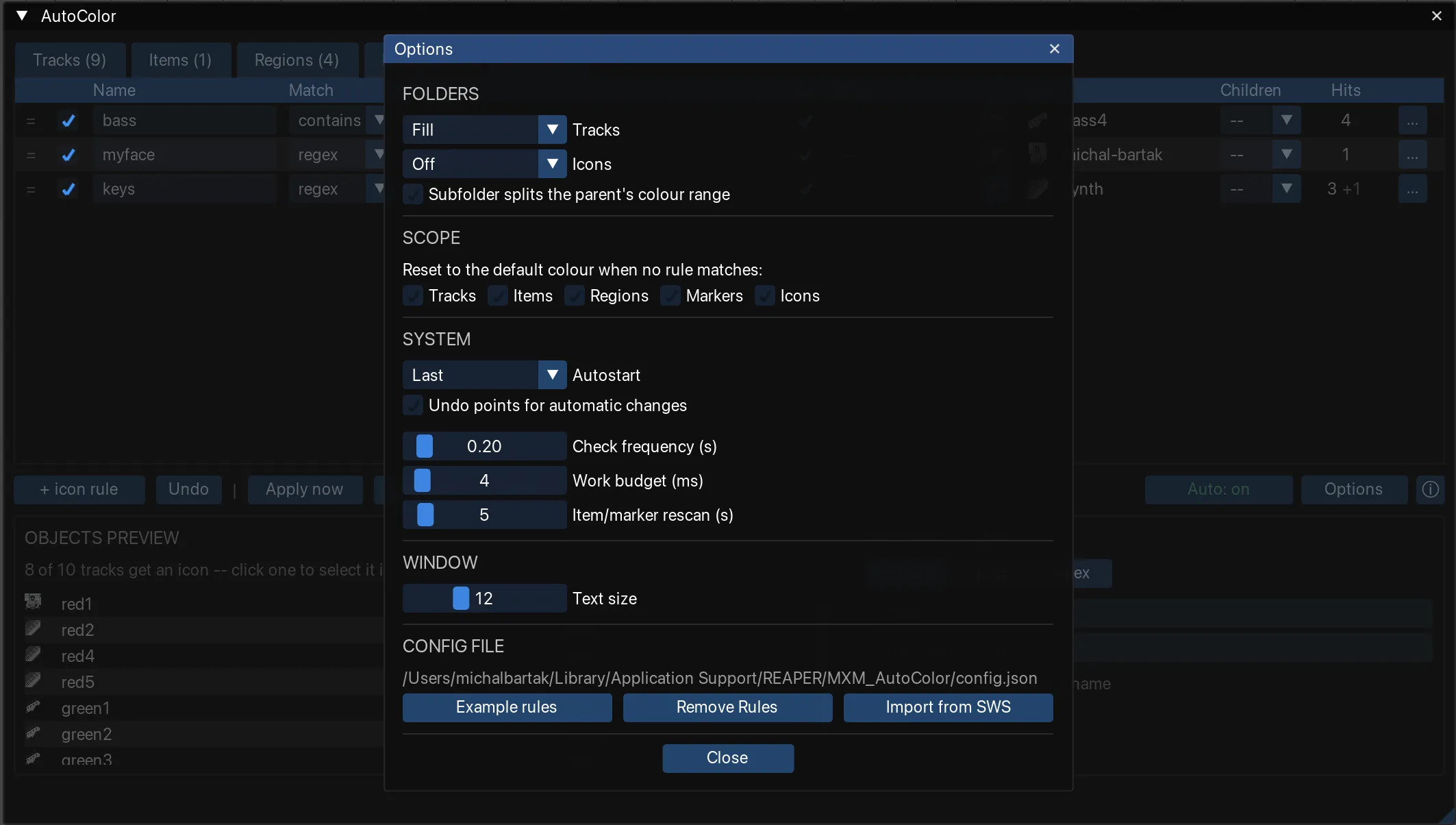
Options apply to every project and are saved in the config file, together with the rules.
While the Options dialog is open, the AutoColor window behind it is dimmed and does not respond to clicks. The dialog stays open when you switch to another application or click elsewhere in REAPER. To close it, click Close, click the close button in its title bar, or press Escape.
Folders
Every rule on the Tracks and Icons tabs has a Children setting. It decides whether the tracks inside a folder also receive the folder track’s colour or icon. A rule whose Children setting is -- uses the value chosen here. There is one value for each tab:
- Tracks: Fill (default), Force or Off. Folders explains the values with examples.
- Icons: Off (default), Fill or Force. Children explains the values with examples.
Subfolder splits the parent’s colour range
Affects only rules whose gradient is spread across folders or runs & folders. When on (default), a subfolder divides the gradient of the folder around it into separate ramps. When off, the folder’s tracks share one ramp. Subfolders explains the setting with examples.
Scope
Reset to the default colour when no rule matches has one checkbox for each object type: Tracks, Items, Regions, Markers and Icons. All five are off by default. When a checkbox is on, applying the rules removes the colour, or for Icons the icon, from every object of that type that no rule matches.
Reset to the default colour when no rule matches explains when to use it.
System
These settings control auto-apply, which applies the rules automatically while you work. Each setting is explained on the Auto-apply page.
| Setting | Default | Allowed values | Explained in |
|---|---|---|---|
| Autostart | Last | Last, Always, Never | Starting with REAPER |
| Undo points for automatic changes | off | on, off | Undo history |
| Check frequency (s) | 0.20 | 0.05 to 2 | How quickly changes are applied |
| Work budget (ms) | 4 | 1 to 50 | How quickly changes are applied |
| Item/marker rescan (s) | 5 | 0 to 60 | How quickly changes are applied |
Window
Text size sets the size of the text in the AutoColor window, from 8 to 20. The default is 14. The setting scales the whole window, including buttons and columns, not only the text.
Config file
This section shows the path to the config file, which stores the rules and options. Below the path are three buttons. Each of them changes the rules on every tab, not only on the tab that is open. They do not change the options.
| Button | What it does |
|---|---|
| Example rules | Replaces all rules with the example rules that AutoColor starts with. The example rules include no icon rules. |
| Remove Rules | Removes every rule from every tab. |
| Import from SWS | Converts the rules of SWS Auto Color into AutoColor rules, and adds them below the existing rules. |
Each button asks for confirmation before it changes anything. Import from SWS first shows how many rules it found. While the AutoColor window stays open, Undo reverses any of the three.
If the config file was written by a newer version of AutoColor, the three buttons are disabled. See Version handling.
Importing from SWS describes what the import reads, which rules come across unchanged, and which rules arrive switched off.
Where to go next
- Config file — where the rules and options are stored, and how they are protected.
- Importing from SWS — bringing SWS Auto Color rules into AutoColor.
- REAPER preferences — two REAPER settings that decide whether item colours are visible.