

Track icons
A track icon is the small image that REAPER can show on a track, in the track panel and the mixer. The Icons tab of the configuration window sets each track’s icon from the track’s name, in the same way that the Tracks tab sets each track’s colour. For example, a rule can give every track whose name contains vox a microphone icon.
Use icon rules to make tracks easier to recognise at a glance, without choosing an icon for each track by hand.
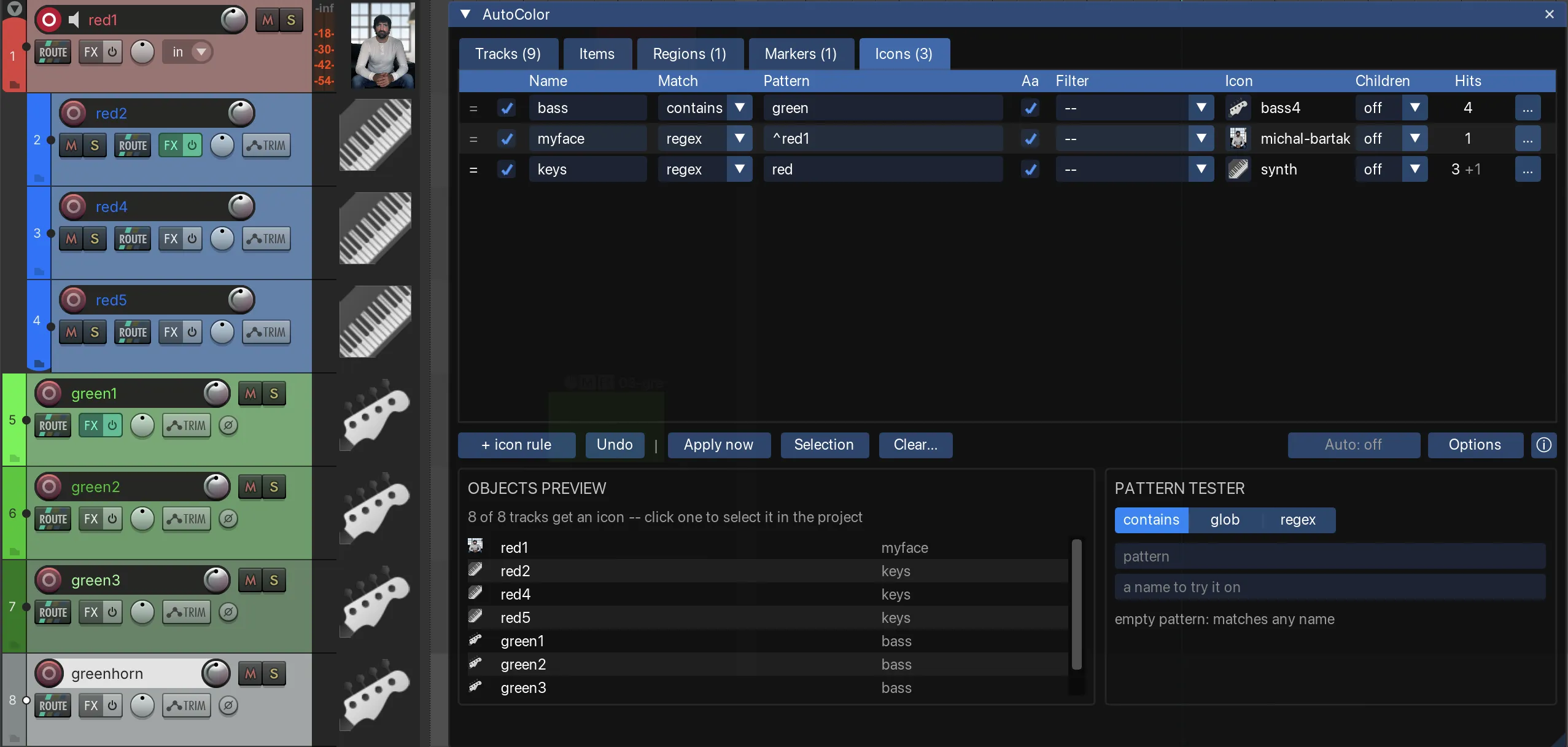
Icon rules
Each row on the Icons tab is one rule. A rule says which tracks it matches and what icon they get:
| Column | What it does |
|---|---|
| Match | How the pattern is compared with the track name: contains (default), glob or regex. See Match modes. |
| Pattern | The text to look for in the track name. An empty pattern matches every name. |
| Aa | On by default: upper and lower case are ignored. |
| Filter | An optional condition that does not depend on the name, such as is a folder track or has an instrument. See Filters. |
| Icon | The icon the matching tracks get. Click the thumbnail to open the icon browser. A rule whose icon is None removes the icon from the tracks it matches. |
| Children | What happens to the tracks inside a folder track that this rule matches. See Children. |
| Hits | How many tracks this rule sets the icon on in the current project. See The Hits column. |
To add a rule, click + icon rule on the action bar. Common controls describes how to reorder, duplicate and delete rules.
Which rule sets a track’s icon
AutoColor compares each track name with the icon rules from top to bottom. The first rule that matches sets the track’s icon. Rules further down the list do not affect that track. To give a rule priority over another, move it higher in the list.
The icon rules are separate from the colour rules on the Tracks tab. A track can take its colour from one rule and its icon from another. For example:
- On the Tracks tab, a rule matching
drumcolours the track red. - On the Icons tab, a rule matching
kicksets a kick drum icon. - A track named
Drum Kickis coloured red by the first rule and gets the kick drum icon from the second.
The icon browser
The icon browser opens when you click the icon thumbnail in a rule. It shows every PNG and JPEG file in the Data/track_icons folder of the REAPER resource folder, including its subfolders. The icons are sorted by their path.
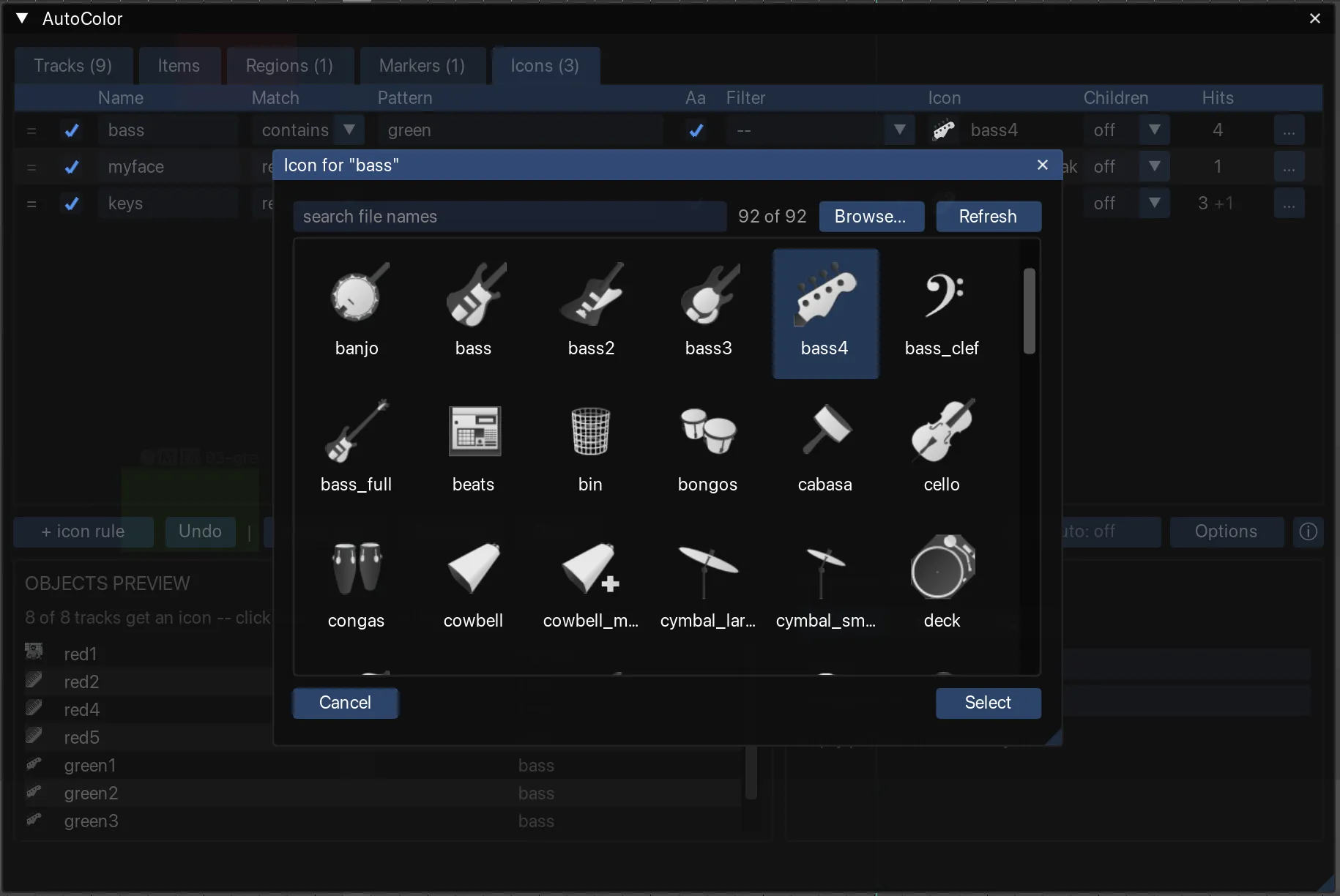
- Type in the search field to show only icons whose file name contains the text. The name of the subfolder is included in the search, and case is ignored. For example,
drumfindskick.pnginside aDrumssubfolder. - Click an icon to mark it.
- Click Select, double-click the icon, or press
Enterto give the marked icon to the rule. - Click Cancel or press
Escto close the browser without changing the rule. - None, the first cell when the search field is empty, removes the icon from the rule.
- Browse… lets you pick an image file from anywhere on disk.
- Refresh reads the
Data/track_iconsfolder again. Use it after adding icon files while the browser is open.
An icon picked from inside Data/track_icons is saved in the rule relative to that folder. The config file then still works on another computer that has the same icons in its own Data/track_icons folder. An icon picked from anywhere else is saved with its full path, so it works only where that path exists.
Children
The Children setting decides whether a folder track passes its icon to the tracks inside it. The setting has an effect only when the rule matches a folder track. Each icon rule has its own Children setting.
| Setting | Effect |
|---|---|
-- (default) | The rule uses the value set under Options → Folders → Icons. That value is Off unless you change it. |
| off | Only the folder track gets the icon. |
| fill | Tracks inside the folder that no icon rule matches get the folder’s icon. Tracks that an icon rule matches get the icon from that rule. |
| force | Every track inside the folder gets the folder’s icon, even if an icon rule matches it. |
For example, a folder track named Drums contains the tracks Kick, Snare and Room. One icon rule matches drums and sets a drum kit icon. Another icon rule matches kick and sets a kick drum icon.
- With off, only
Drumsgets the drum kit icon.Kickgets the kick drum icon.SnareandRoomget no icon from the rules. - With fill,
SnareandRoomalso get the drum kit icon.Kickkeeps the kick drum icon. - With force, all three tracks get the drum kit icon.
Folders inside folders follow these rules:
- If several nested folders use force, the tracks inside get the icon of the outermost folder.
- If an outer folder’s rule uses fill, tracks inside a subfolder that no icon rule matches also get the outer folder’s icon. This applies even when the subfolder’s own rule has Children set to off.
Rules on the Tracks tab have a Children setting of their own, which works in the same way for colours. The two settings are independent: a folder track can pass its colour to its children without passing its icon, or the other way round. See Folders.
When icons are set
Editing a rule does not change the project. AutoColor sets the icons when the rules are applied, together with the colours:
- Apply now on the Icons tab sets the icon of every track in the project. One undo reverts the whole change.
- Selection on the Icons tab sets the icons of the selected tracks only.
- While auto-apply is running, a track gets its icon as soon as it is added or renamed.
A track that no icon rule matches keeps the icon it already has. To remove icons once, use the Clear… menu on the Icons tab; see Clearing track icons. To remove the icon from such tracks every time the rules are applied, turn on Options → Scope → Reset to the default colour when no rule matches → Icons; see Reset to the default colour when no rule matches.
While auto-apply is running, an icon that you set by hand stays until you rename the track or click Apply now. Icons and colours set by hand are handled independently of each other. See Colours and icons set by hand.
Applying colours and icons describes the apply buttons and actions in full.
Limitations
- If a rule’s icon file cannot be found, a warning appears below the rule list when the rule is selected.
- If SWS Auto Icon is enabled, the Icons tab shows a warning. See Colours keep changing back.
Where to go next
- Importing from SWS — SWS Auto Icon rules can be imported as well.