

Troubleshooting
This page lists problems you may see while using AutoColor. Each entry describes what you see, explains why it happens, and says what to do.
Start here: why this colour?
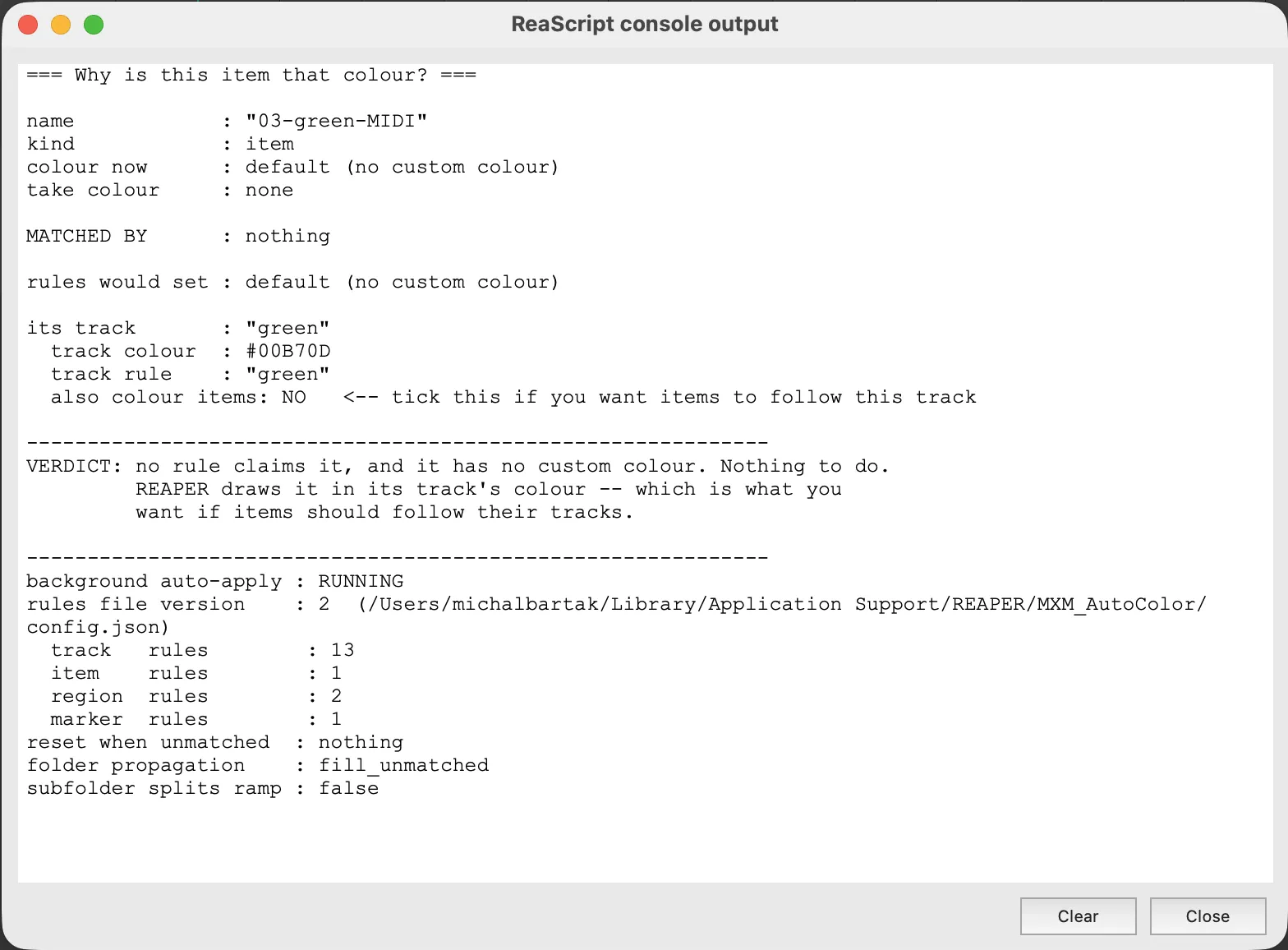
When a track or item does not have the colour you expect, start with the action MXM_AutoColor_WhyThisColour.lua. It explains the colour of one object. It changes nothing in the project.
- Select the track or item.
- Run
MXM_AutoColor_WhyThisColour.luafrom REAPER’s Action List. - Read the report in the ReaScript console window that opens.
The report shows:
- the object’s name and its current colour, and for an item, whether a take colour is set;
- which rule matches the object, or that no rule matches it;
- for an item, whether it gets its colour from its track’s rule;
- the colour that the rules would give the object;
- a verdict: whether applying the rules would change the colour, and if not, why an existing colour stays;
- whether auto-apply is running, and a summary of the relevant options.
Items look unchanged after AutoColor coloured them
AutoColor reports that it coloured items, but the items in the arrange view look the same as before.
AutoColor did write the colours, but REAPER’s preferences, a take colour or the colour theme keep REAPER from drawing them. REAPER preferences explains which settings to check.
Colours keep changing back
You apply the rules, and soon afterwards the colours change to something else. Or the colours switch back and forth.
SWS Auto Color is switched on and is colouring the same tracks, regions or markers, or SWS Auto Icon is setting the same track icons. Each tool overwrites the changes made by the other. While SWS Auto Color is on, each affected tab in the AutoColor window that has rules shows a warning. MXM_AutoColor_ApplyAll.lua and starting auto-apply also show a message.
Switch one of the two off. To switch SWS Auto Color off, use SWS → Auto Color/Icon/Layout in REAPER. To keep your SWS rules, first bring them into AutoColor with Options ▸ Config file ▸ Import from SWS. See Importing from SWS.
A rule matches nothing (Hits shows 0)
The Hits column shows 0 for a rule, although you expect the rule to match some objects.
Hits counts only the objects that the rule colours. A rule colours an object only when no rule higher on the tab matches it first. The Hits column explains the column in full.
Check these causes:
- A rule higher on the same tab matches the same objects. Hits then shows a second number, such as
0 +3. Move the rule higher in the list. - The rule uses glob mode, and the pattern does not describe the entire name. For example, the glob
bassmatches only a track named exactlybass. See glob. - A filter excludes the objects. An object must match both the pattern and the filter. See Filters.
- The rule is switched off.
- The pattern is invalid. Hits then shows
err. See Invalid, unsupported and slow patterns.
To check a pattern against one name, use the Pattern tester.
“This pattern is too slow”
The Hits column of a rule shows a number with an exclamation mark, such as !0. The tooltip says This pattern is too slow and timed out.
The rule’s regular expression takes too long to test against some names, so AutoColor stopped testing it and treated those names as not matching. Simplify the pattern. Slow patterns describes the cause and the fix.
Apply now replaced a colour set by hand
You coloured a track or item by hand. Auto-apply left your colour in place, but Apply now replaced it with the rule’s colour.
Both are intended. Auto-apply keeps colours and icons that you set by hand, while Apply now applies the open tab’s rules to every object of that type. Colours and icons set by hand describes both behaviours.
To keep a colour set by hand permanently, make sure that no rule matches the object, and that Reset to the default colour when no rule matches is off for its object type in Options.
The Auto button says “off” and will not start
The Auto button in the AutoColor window shows Auto: off. Clicking it shows a message asking you to run an action, and auto-apply does not start.
Run MXM_AutoColor_AutoToggle.lua once from REAPER’s Action List. After that, the Auto button starts and stops auto-apply. See Starting and stopping.
A renamed item, region or marker keeps its old colour
You renamed an item, region or marker, and auto-apply did not change its colour right away.
Auto-apply detects a renamed item, region or marker only at a fixed interval, set by Item/marker rescan (s) in Options, 5 seconds by default. Wait for the interval, or click Apply now. How quickly changes are applied explains the interval and how to shorten it.
An update to AutoColor has no effect
You updated AutoColor, for example through ReaPack, or edited its files. The AutoColor window or auto-apply still behaves as before.
The AutoColor window and auto-apply load the scripts when they start. They keep using that version for as long as they run.
- Close the AutoColor window and open it again.
- Stop auto-apply and start it again.
Actions that run once, such as MXM_AutoColor_ApplyAll.lua, use the new version the next time you run them.
The master track is never coloured
No rule changes the colour or icon of the master track.
REAPER does not show a custom colour on the master track, whether the colour is set by AutoColor or by REAPER’s own track colour action. For that reason, AutoColor leaves the master track out entirely: rules do not match it, and AutoColor does not change it.
The rules are gone
The AutoColor window shows no rules, or fewer rules than you had.
If the window is still open, click Undo. Undo steps back through changes to the rules while the window stays open.
If the window has been closed, AutoColor may have kept a copy of the previous rules. See Backup files for where the copies are and how to restore one.
The window says nothing will be saved
The AutoColor window shows the banner This config file was written by a newer version. Editing is allowed but nothing will be saved.
A newer version of AutoColor wrote the config file, and this older version does not save over it. Update AutoColor to the latest version. See Version handling.
Diagnostics
MXM_AutoColor_Dump.lua lists every track, item, region and marker with its name and current colour. The actions lists every AutoColor action. Auto-apply can also print a summary of its activity; see Diagnostic output.
The dev/ folder of the AutoColor source repository holds a few more diagnostic scripts. One shows whether your setup draws the take colour or the item colour. One reports which part of REAPER has focus. One builds a test project with difficult cases. They are not installed with AutoColor. To use them, download the repository.
Not implemented
The rule list has no filter or search box. The order of the list decides which rule colours an object, and hiding some rows would hide that order. A filtered list would also break reordering rules by dragging.