

Colours and gradients
Every rule on the Tracks, Items, Regions and Markers tabs has a colour. AutoColor gives that colour to the tracks, items, regions or markers that the rule matches. This page explains which colour each of them receives.
A rule can have one colour or two:
- With one colour, everything the rule matches receives that same colour.
- With two colours, the rule creates a gradient: a sequence of shades that changes step by step from the first colour to the second. Gradients make related tracks look like a group while keeping each track distinguishable.
The Children setting of a track rule, described on this page, decides whether the tracks inside a folder also receive the folder track’s colour.
The colours are written into the project when the rules are applied: with Apply now or Selection in the configuration window, with the apply actions, or automatically while auto-apply is running. See Applying colours and icons.
In this documentation, object is the general word for a track, an item, a region or a marker.
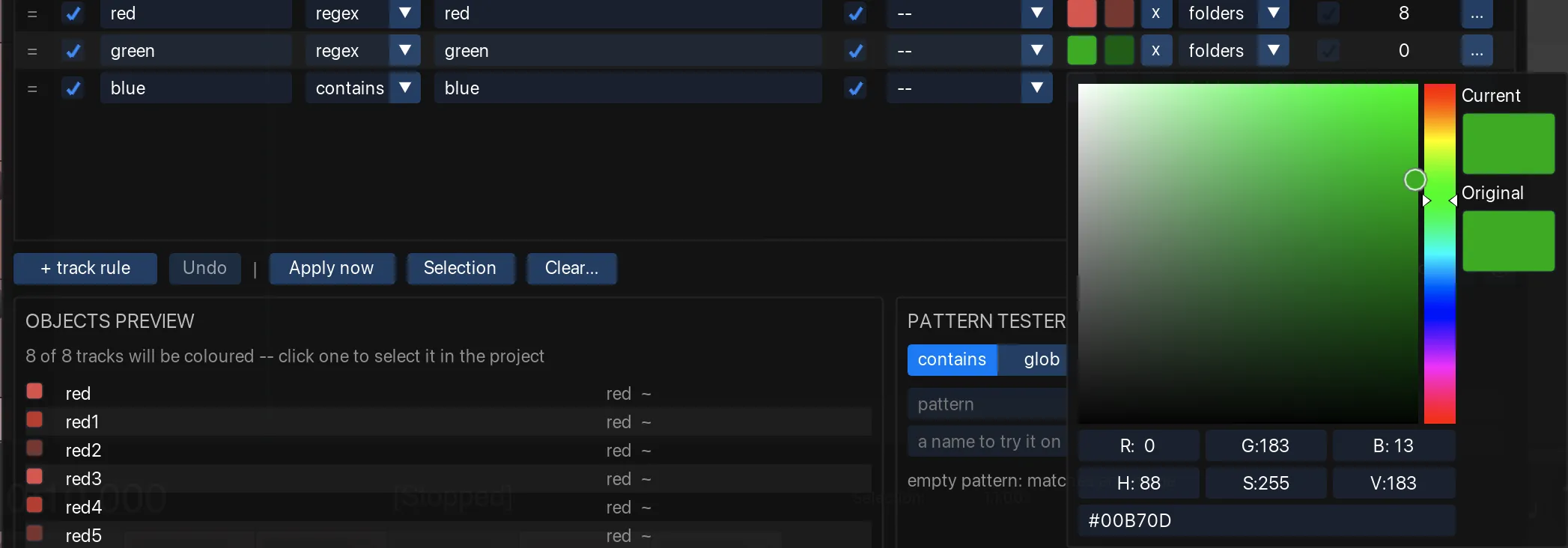
How a rule’s colour is chosen
The Colour column of a rule holds its colour. To turn the rule into a gradient, click + beside the colour to add a second colour. To return to a single colour, click x beside the second colour.
When the rules are applied, AutoColor works out the colours for each rule in this order:
- AutoColor finds the objects that the rule colours. These are the objects whose names match the rule’s pattern and filter, and that no rule higher on the same tab has already matched. Matching names explains patterns and filters.
- For tracks, the rule’s Children setting can also give the rule’s colour to the tracks inside a folder whose folder track the rule colours.
- If the rule has one colour, every one of these objects receives it.
- If the rule has two colours, the objects receive shades of a gradient. The rule’s spread setting decides how the gradient is divided among them.
An object that no rule colours keeps the colour it already has, unless the option Reset to the default colour when no rule matches is on for its object type. Items have additional ways to get a colour; see Items and their track’s colour.
The diagrams on this page show the result of different combinations of these settings.
One colour per rule
A rule with one colour gives that colour to every object it colours.
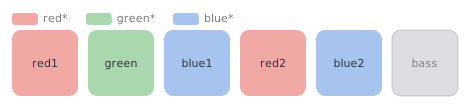
bass, so AutoColor does not change its colour.Folders
In REAPER, a folder track groups the tracks below it. The tracks inside the folder are its children. A folder can also contain other folders, called subfolders.
The Children setting decides whether a folder track’s colour is also given to its children. Each rule on the Tracks tab has its own Children setting. The setting has an effect only when the rule colours a folder track. It has four values:
| Setting | Effect |
|---|---|
-- (default) | The rule uses the value set under Options → Folders → Tracks. That value is Fill unless you change it. |
| fill | A child that no rule matches receives the folder track’s colour. A child that a rule matches keeps the colour of that rule. |
| force | Every child receives the folder track’s colour, including children that a rule matches. |
| off | Children never receive the folder track’s colour. Each child is coloured only by the rule that matches it. |
For example, a rule colours the folder track Drums red, and another rule colours tracks named Kick orange. The folder contains the tracks Kick and Room, and no rule matches Room:
- With fill,
Kickis orange andRoomis red. - With force, both
KickandRoomare red. - With off,
Kickis orange andRoomkeeps the colour it already has.
Choose force when each folder should appear as one block of colour, whatever the names inside it. Choose off when every track should be coloured only by its own name.
To use the same behaviour for every folder, leave each rule at -- and choose the value under Options → Folders → Tracks. To make one folder behave differently, set Children on the rule that colours its folder track.
The Children setting of a track rule applies only to colours. Icon rules have their own Children setting; see Track icons.
The diagrams below show one folder. The folder track is named red. Two of its children, green and blue, are matched by rules of their own. The third child, bass, is matched by no rule.
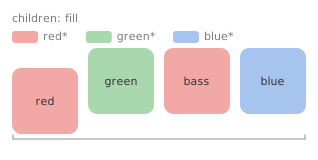
bass receives the folder’s colour.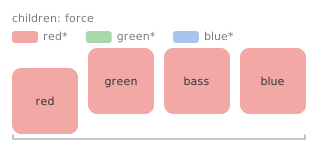
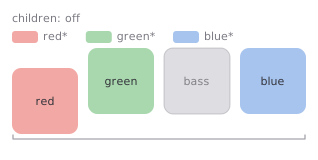
bass.When folders are nested, the values behave as follows:
- With fill, a child that no rule matches receives the colour of the innermost folder around it that has a colour. A folder has a colour when a rule matches its folder track, or when its folder track received a colour from a folder further out.
- With force, the outermost folder whose folder track has a colour gives that colour to everything inside it, including its subfolders.
- If an outer folder’s rule uses fill, tracks inside a subfolder that no rule matches also receive the outer folder’s colour. This applies even when the Children setting of the subfolder’s own rule is off.
Gradients
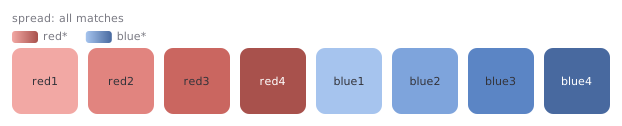
A rule with two colours gives each object it colours a different shade between the two colours. This documentation calls one such sequence of shades a ramp.
Within one ramp:
- the first object receives exactly the first colour;
- the last object receives exactly the second colour;
- the objects in between receive evenly spaced shades.
The objects follow project order. Tracks are ordered from top to bottom. Items, regions and markers are ordered from left to right along the timeline. Each rule has its own ramps, and each tab is handled separately.
The shades in between are blended around the colour wheel, taking the shorter way. For example, a ramp from red to yellow passes through orange. If one of the two colours is grey, white or black, the ramp keeps the hue of the other colour and changes only its brightness and saturation.
A ramp that contains only one object gives that object the first colour, because there is nothing to spread the gradient across.
Spread across
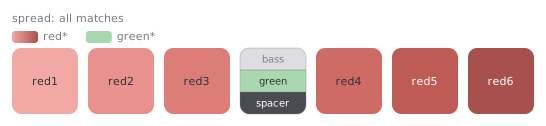
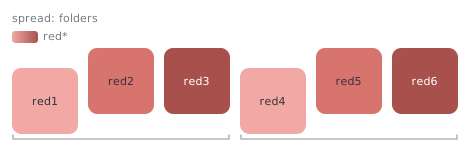
A rule’s matches are not always next to each other. Other tracks can sit between them, or they can be in different folders. The spread setting decides whether all of a rule’s matches share one ramp, or whether the rule starts a new ramp at certain points. Each new ramp starts again from the first colour.
The spread setting is chosen per rule, in the box beside the second colour.

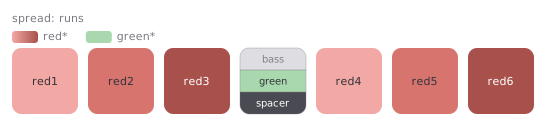
Two of the values use the idea of a run. A run is an unbroken sequence of neighbouring objects that the rule colours. A run ends at any object that the rule does not colour:
- an object that no rule colours;
- an object that another rule colours;
- for tracks, a REAPER visual spacer.
The start or end of a folder does not end a run. To start a new ramp where a folder starts or ends, use folders or runs & folders.
| Spread across | One ramp covers | Available on |
|---|---|---|
| all matches | Every object the rule colours in the project | All tabs |
| runs | One run | All tabs |
| folders | The tracks the rule colours within one folder | Tracks only |
| runs & folders | One run, which also ends where a folder starts or ends | Tracks only |
The default depends on the tab:
| Tab | Default spread |
|---|---|
| Tracks | runs |
| Items | runs |
| Regions | all matches |
| Markers | all matches |
Regions and markers default to all matches because the regions of a song can alternate, for example Verse, Chorus, Verse, Chorus. With runs, a rule for Verse would then have one region in each run, and every region would receive the first colour. runs suits regions that follow each other in blocks.
On the Items tab, a ramp never continues from one track to the next. Each track’s items get their own ramp, even with all matches.
The values give different results as soon as something interrupts a sequence of matches. In the two diagrams below, the fourth square stands for anything that interrupts the red tracks: a track that no rule colours, a track that another rule colours, or a visual spacer.
With folders, each folder has its own ramp. The folder track belongs to the folder it opens, so it receives the first shade of that folder’s ramp. Tracks that are not inside any folder share a ramp of their own; Subfolders describes how folders at the top level divide those tracks.
Subfolders
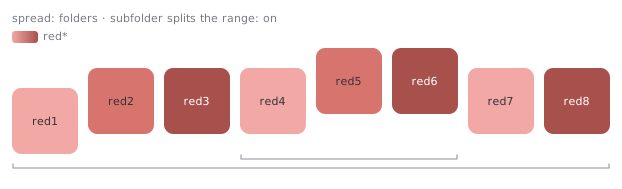
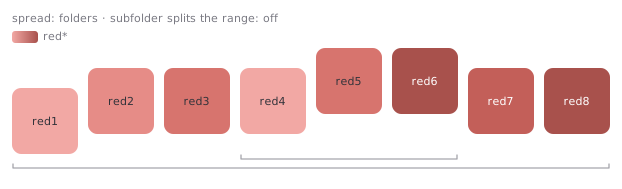
The setting Options → Folders → Subfolder splits the parent’s colour range decides how a subfolder affects the ramp of the folder around it. It applies to all rules that spread across folders or runs & folders. It has no effect on the other spread values.
In this section, a range is a group of tracks that share one ramp.
On (default): a subfolder divides the tracks of the folder around it. The tracks before the subfolder form one range. The tracks after it form a new range, which starts its ramp again from the first colour instead of continuing the earlier ramp. A folder at the top level divides the tracks outside folders in the same way.
Off: the tracks of a folder share one ramp, even when a subfolder sits between them. The tracks after the subfolder continue the ramp from where the tracks before it stopped. This applies at every level of nesting.
In both cases, the subfolder’s own tracks get a separate ramp.
For example, a folder contains the tracks Violin 1 and Violin 2, then a subfolder of violas, then the tracks Cello and Double bass. With the setting on, the two violins form one range and the cello and double bass form another, and both ramps start at the first colour. With the setting off, the four tracks share one ramp, which runs from the first violin to the double bass.
Gradients and folder colours
When a gradient rule matches a folder track, the rule’s Children setting can give the folder track’s colour to its children as well. The children that receive the folder’s colour in this way become part of the folder track’s ramp. The ramp then spreads across the whole folder instead of giving every child the same colour.
The two diagrams below use the same folder. The rule’s pattern is red1, which is the folder track’s own name. No child matches this pattern, so every child that receives the red gradient receives it from the folder track. The child blue1 matches a separate rule, blue*, and keeps its blue colour. The rule’s Children setting is fill.
A child that the gradient rule does not colour, such as blue1, interrupts the folder’s ramp in the same way as it would between tracks outside a folder. With runs or runs & folders, that child splits the ramp in two.
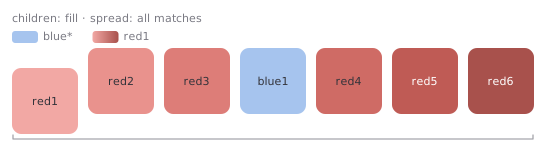
blue1 is left out, so the ramp has six steps instead of seven. The ramp is not split.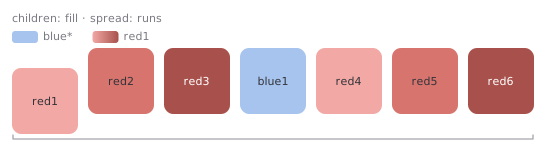
blue1 ends a run, so red1–red3 and red4–red6 each receive a full ramp.Two settings decide whether a child such as blue1 splits the ramp:
- The Children setting. With force, the folder track’s rule colours every child, including
blue1, so nothing interrupts the ramp. With off, no child receives the folder’s colour, so the folder track has no ramp across its children at all. - The spread setting. Only runs and runs & folders split the ramp. With all matches or folders, the ramp stays in one piece and is one step shorter.
With a single folder, as in these diagrams, runs & folders gives the same result as runs, because there is no second folder whose boundary could start a new ramp.
Limitations of gradients
These points apply to gradients only. A rule with one colour gives the same result wherever its objects are.
- The shade an object receives depends on its position in the ramp. Adding or removing an object inside a ramp changes the shades of the other objects in that ramp. With a spread setting that creates several smaller ramps, such as runs, the change affects only the ramp that contains the object.
- If an object that separates two runs is renamed so that the rule now colours it, the two runs join into one ramp.
- A gradient rule on the Items tab can be slow in very large projects. The window shows a warning when such a rule is selected.
Where to go next
- Item colours — how items take their colour, and take colours.
- Matching names — how a rule decides which objects it colours.