
Clusters
The Clusters tab holds every database the app can reach, and the groups they belong to. Groups helps adresing multiple clusters (ie all production ones) with single click. Groups also provides a color, used to color-code information on role edit page.
Editing of clusters and cluster groups is staged — press Save to confirm, Discard to revert.
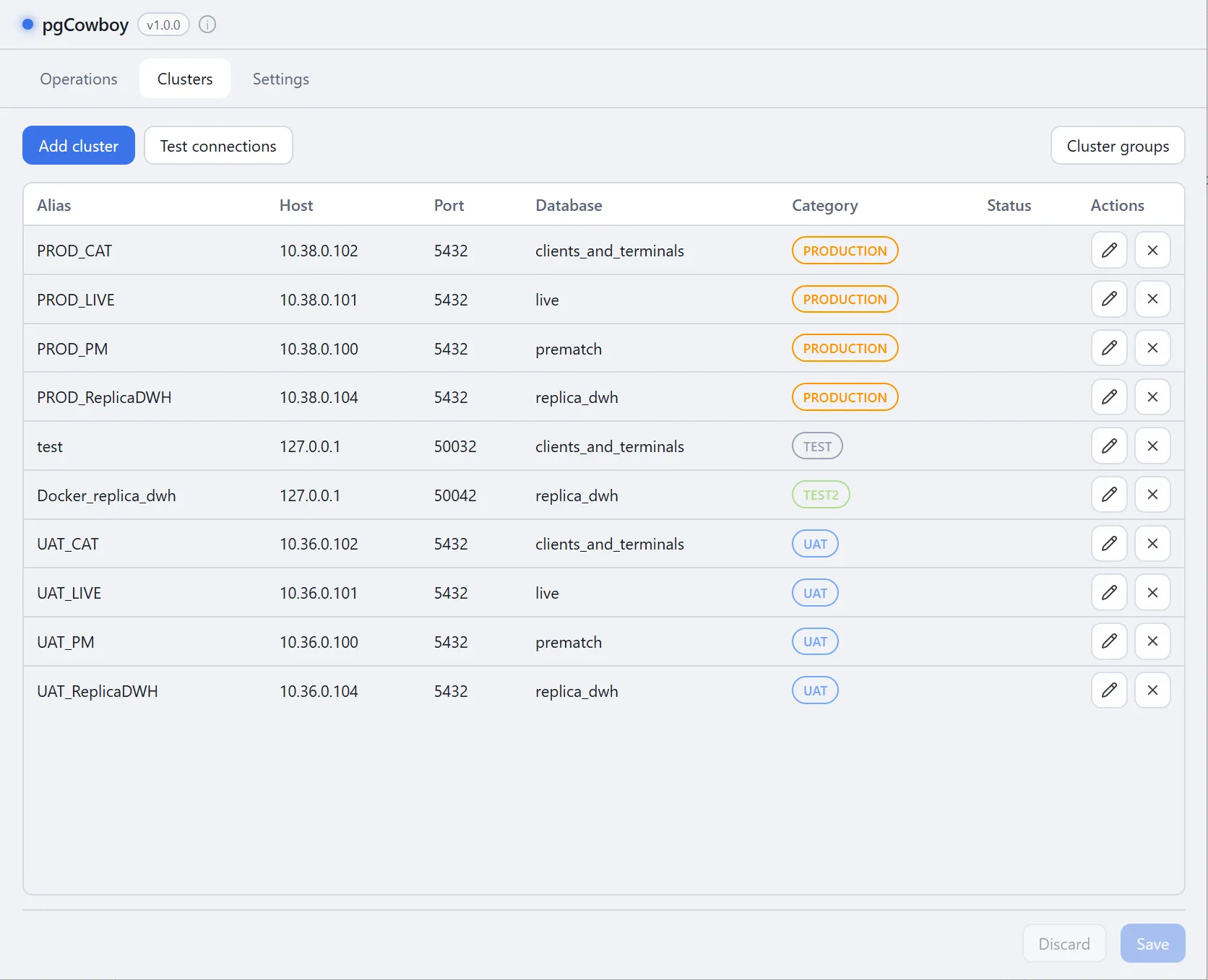
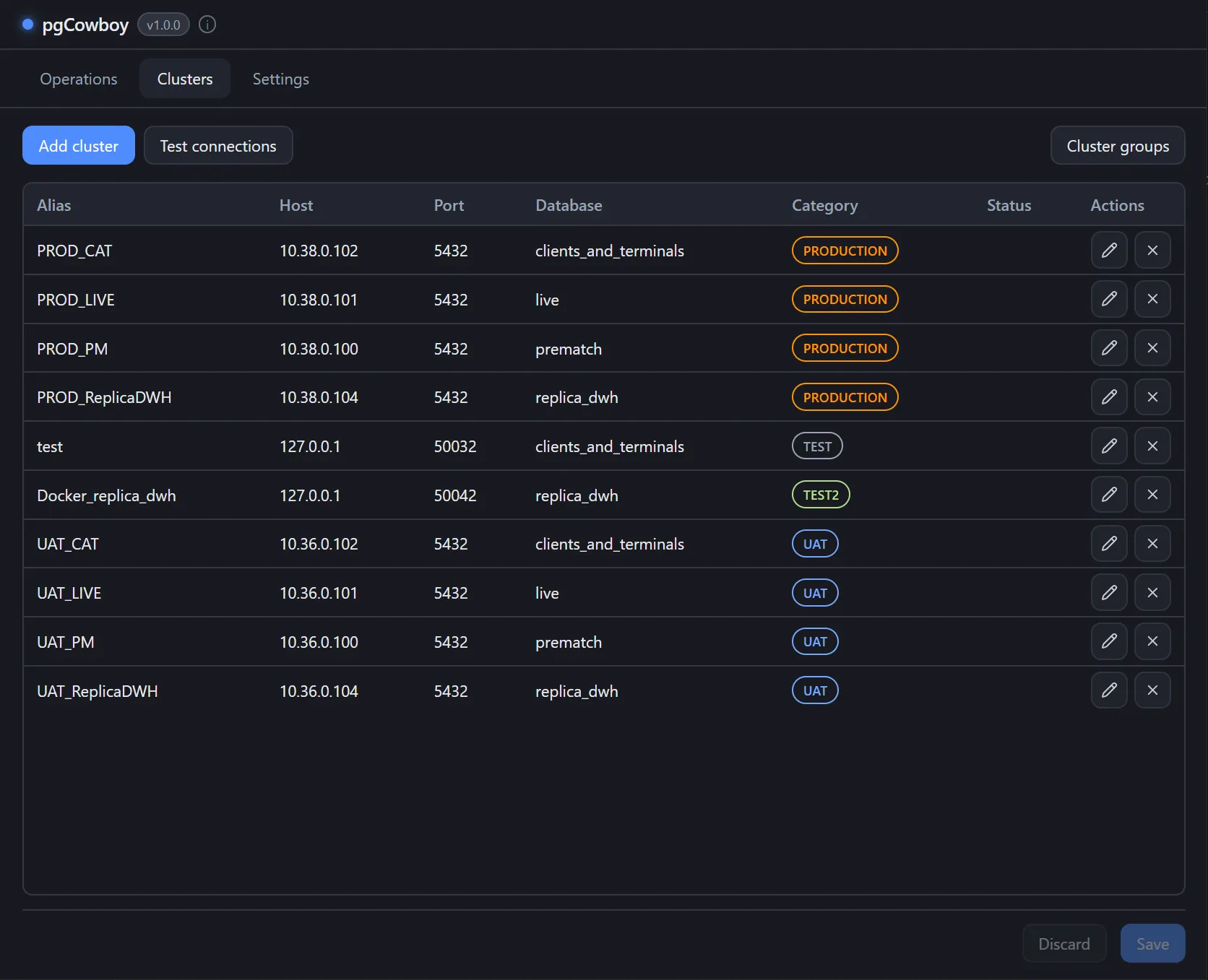
Each cluster’s row has edit and delete buttons. The Status column is filled by result of Test connections action.
Cluster configuration
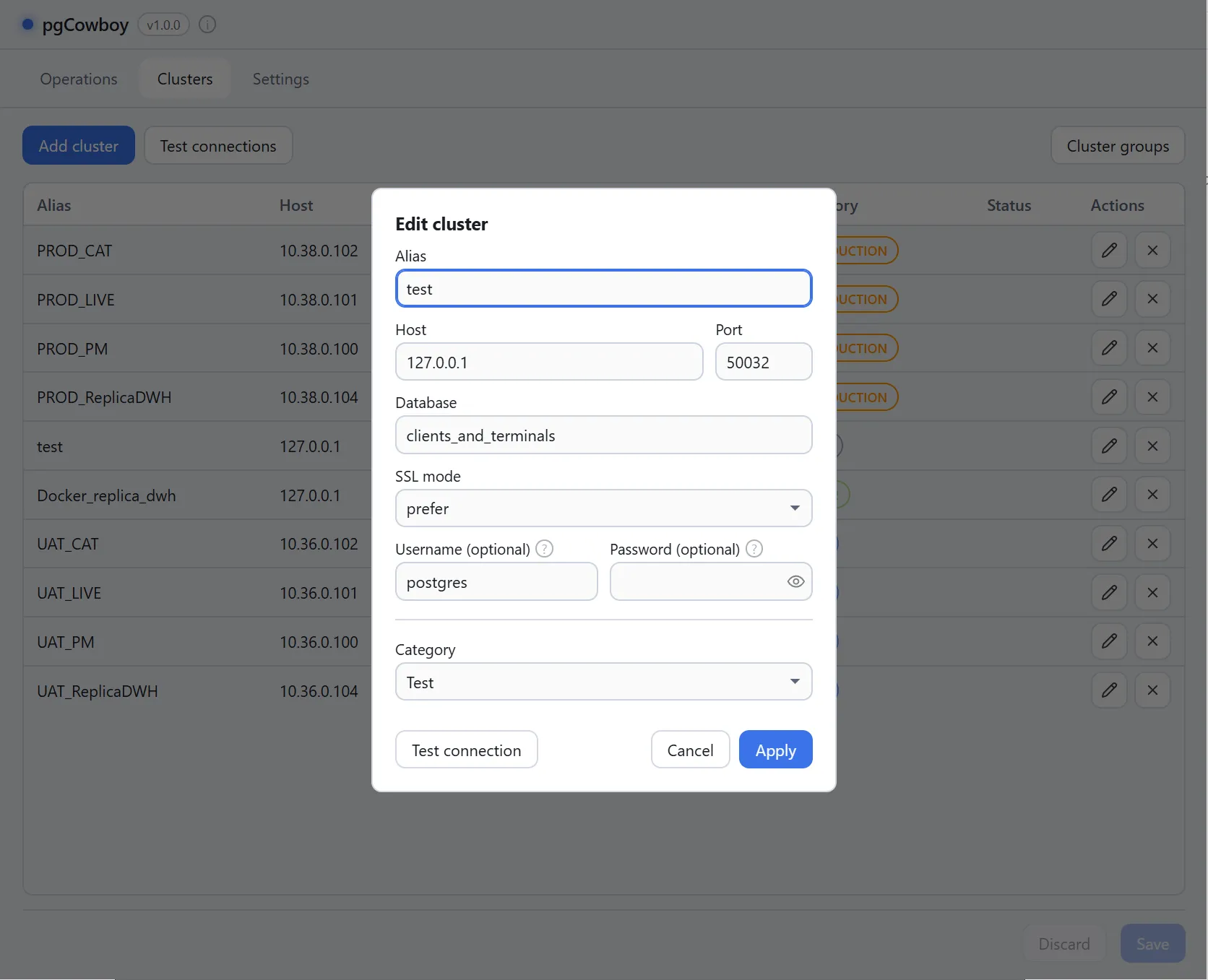
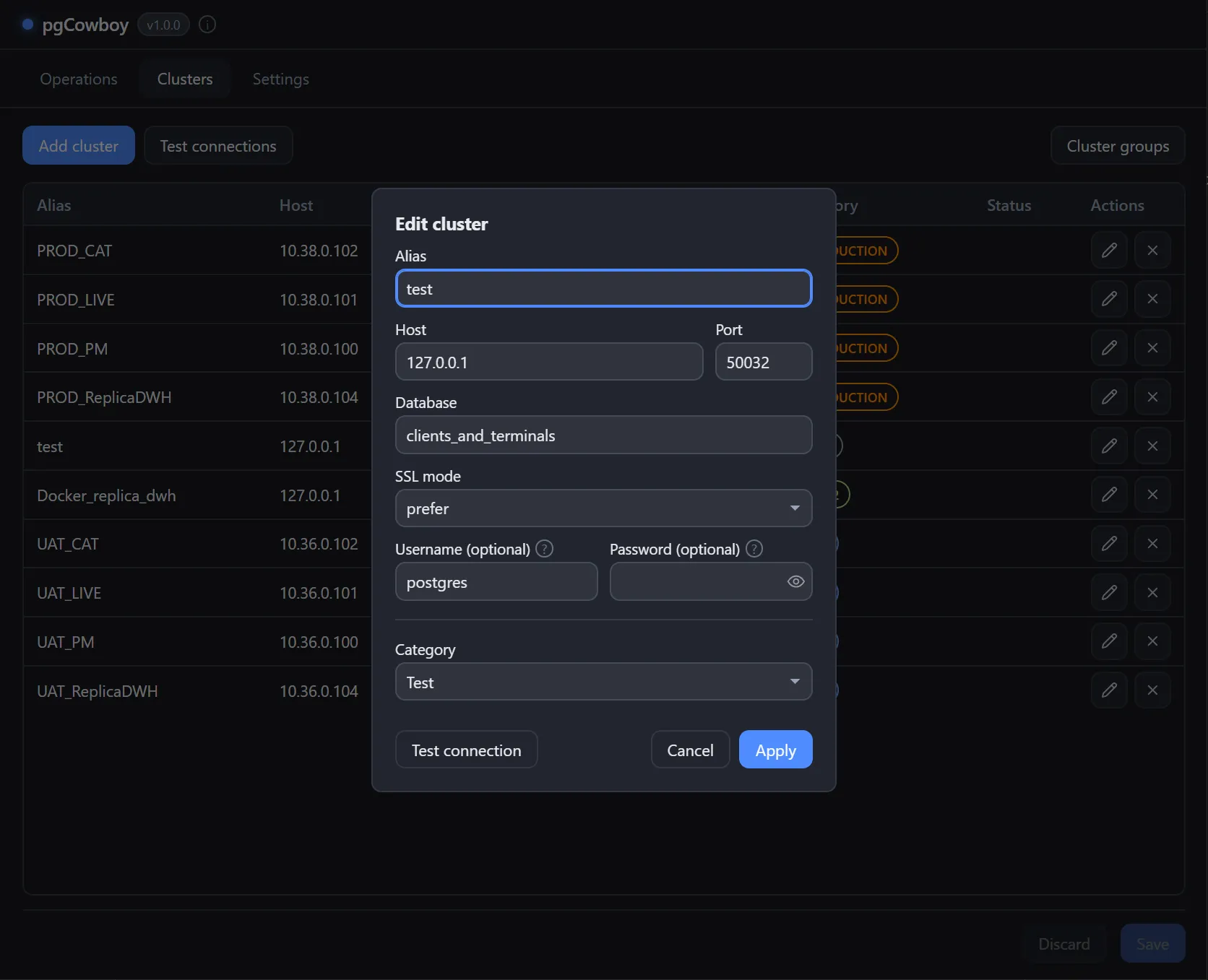
| Field | Notes |
|---|---|
| Alias | Display name. Required |
| Host | Host address |
| Port | Connection port. Defaults to 5432. |
| Database | The database to connect to. Required. |
| SSL mode | prefer (default), disable, require, verify-ca, verify-full. |
| Username | Optional. See Credentials below. |
| Password | Optional, masked, with a reveal toggle. |
| Group | Required. The cluster group this cluster belongs to — it sets the colour and the confirmation gate. |
Credentials
The app resolves credentials the way psql does. First match wins:
- User — the cluster’s Username →
PGUSER→ your OS login name. - Password — the cluster’s Password →
PGPASSWORD→~/.pgpass→ none (works with trust authentication).
Testing connections
- Test connections (toolbar) checks every saved cluster and writes the result into each row’s Status column.
- Test connection (inside the cluster editor) tests the values currently on screen, so you can verify a host or password before saving.
Cluster groups
Groups are edited from the Cluster groups button in the toolbar. The dialog lists every group with its colour, whether it requires confirmation, and per-row edit and delete actions.
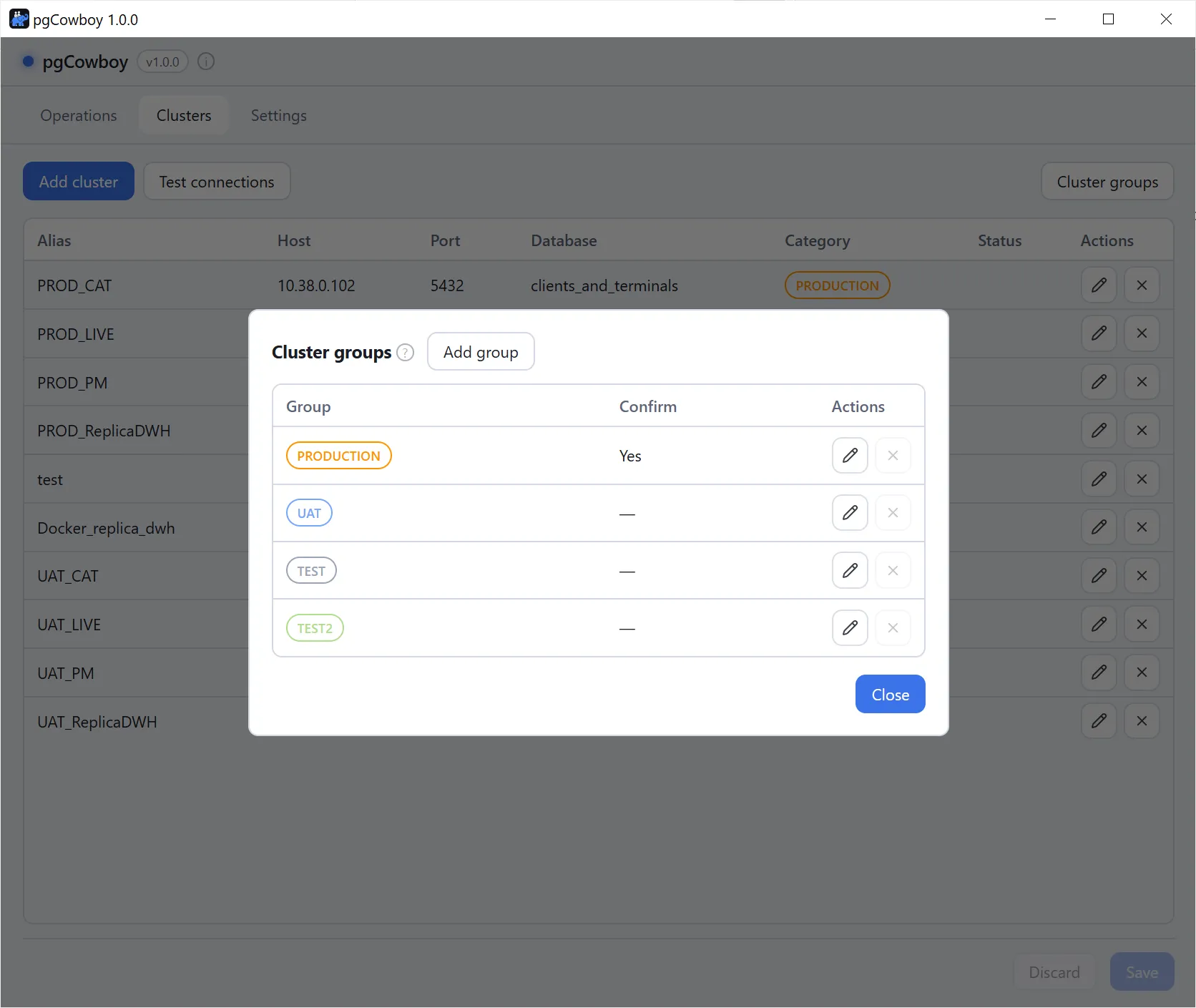
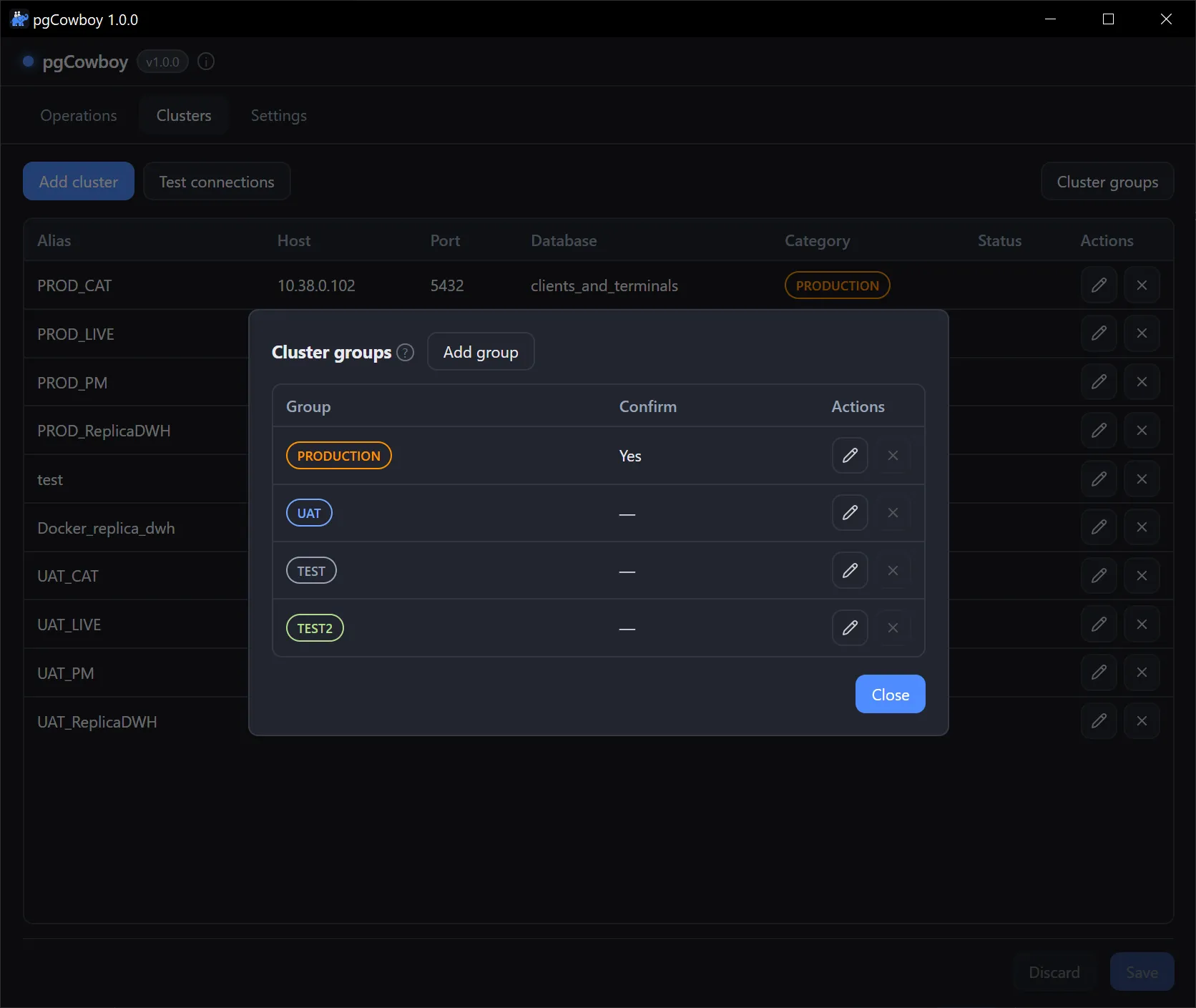
Add group and the row’s edit button open the same small form. Apply stages the change; like everything else on the Clusters tab it is only written when you press Save in the footer.
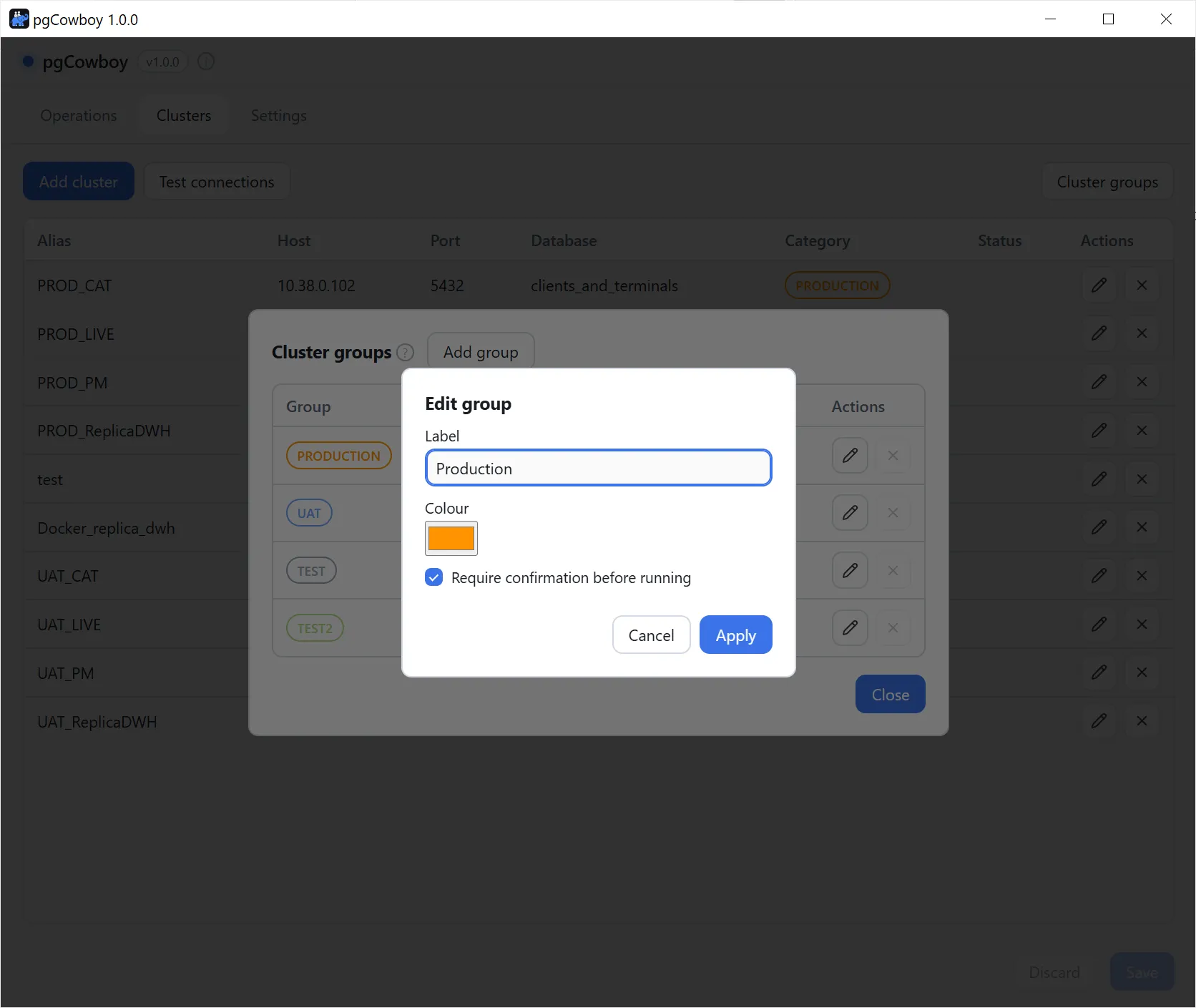
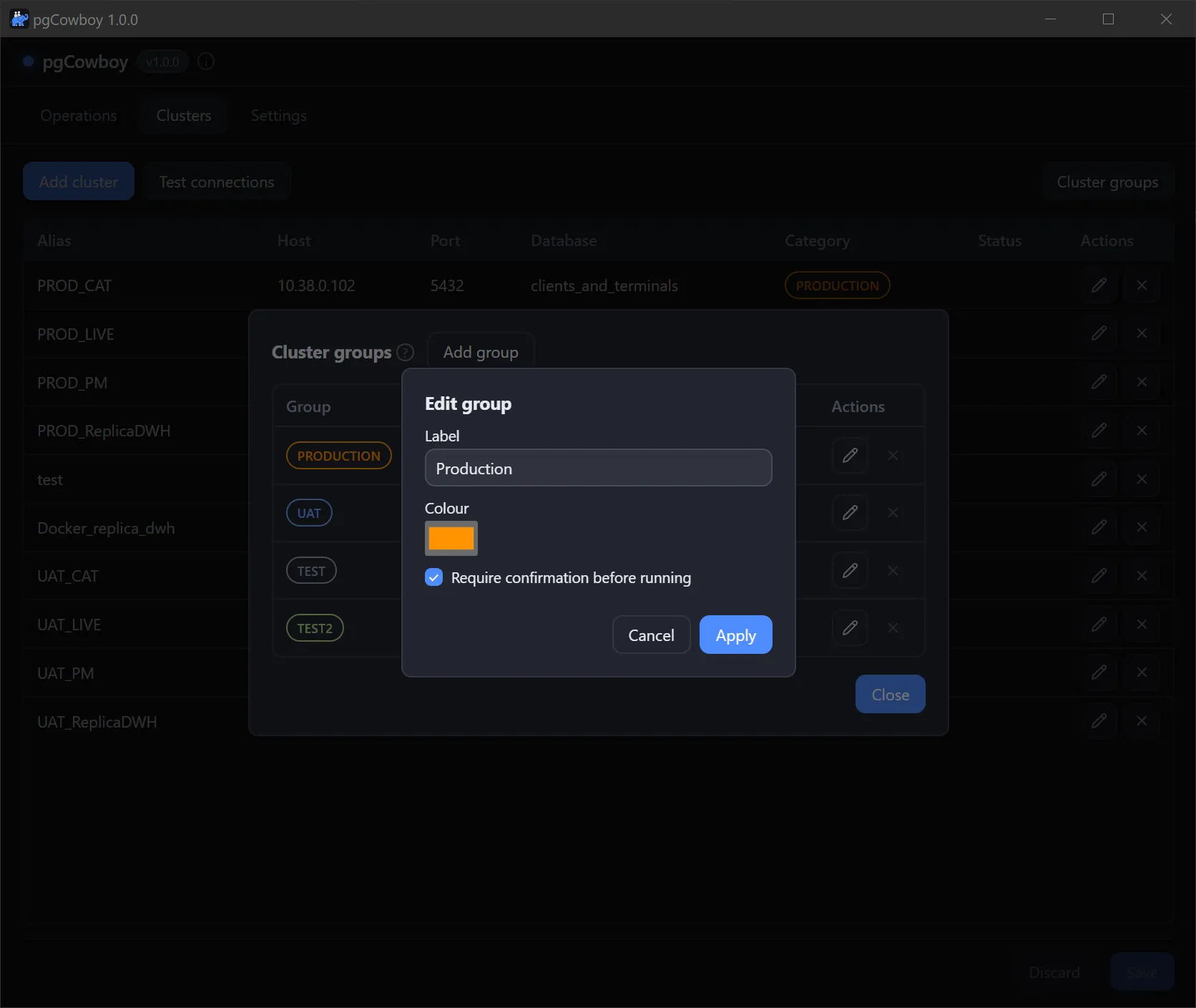
| Field | Notes |
|---|---|
| Label | Shown on scope labels and cluster rows. Its slug becomes the group id, fixed after creation. |
| Colour | Base colour used for that group everywhere in the app. |
| Require confirmation | Any run touching this group stops at a confirmation dialog first. |