
Creating a role
Click the Create role tab. The form resets to an empty role over the clusters currently selected in Target selection.
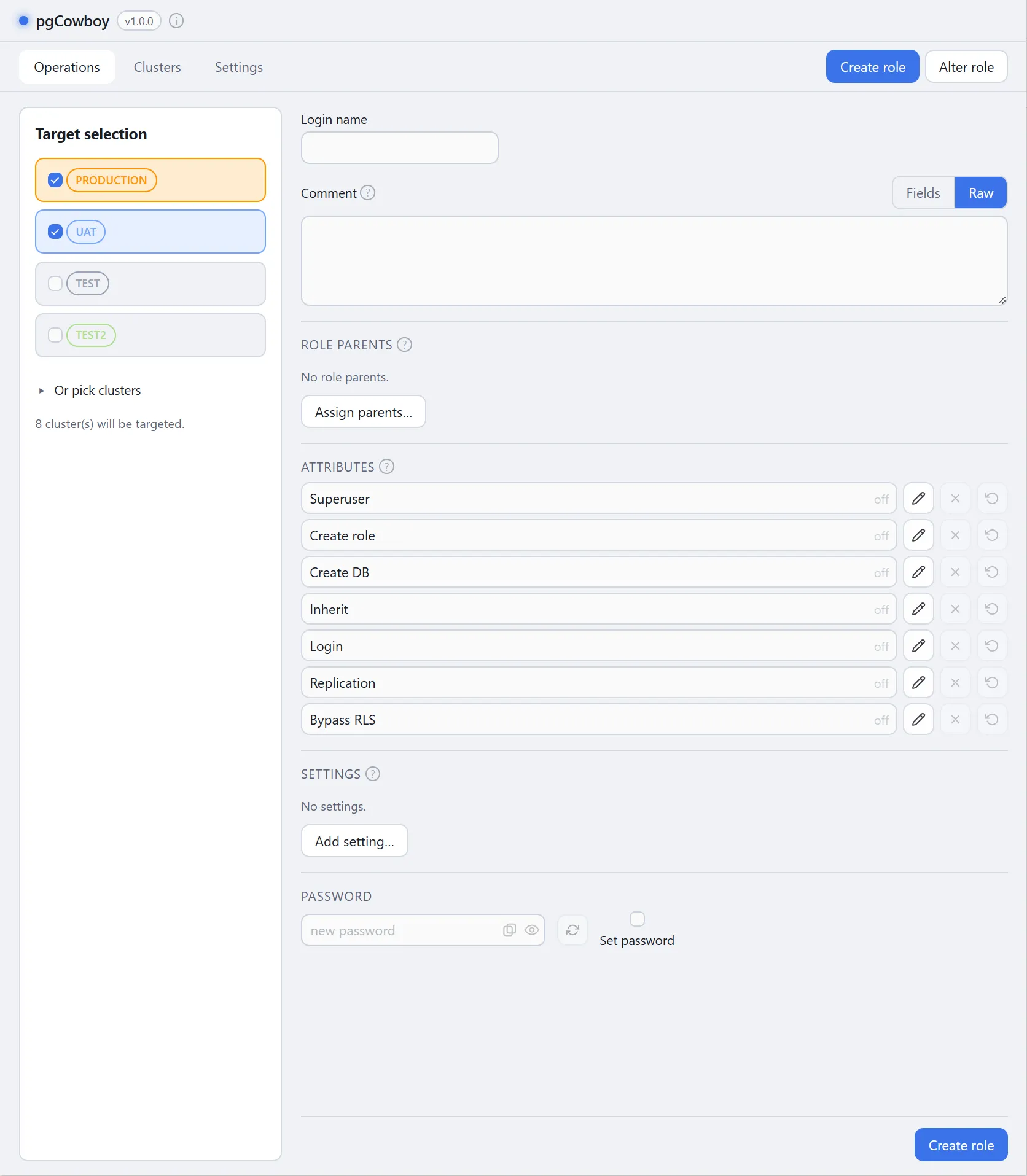
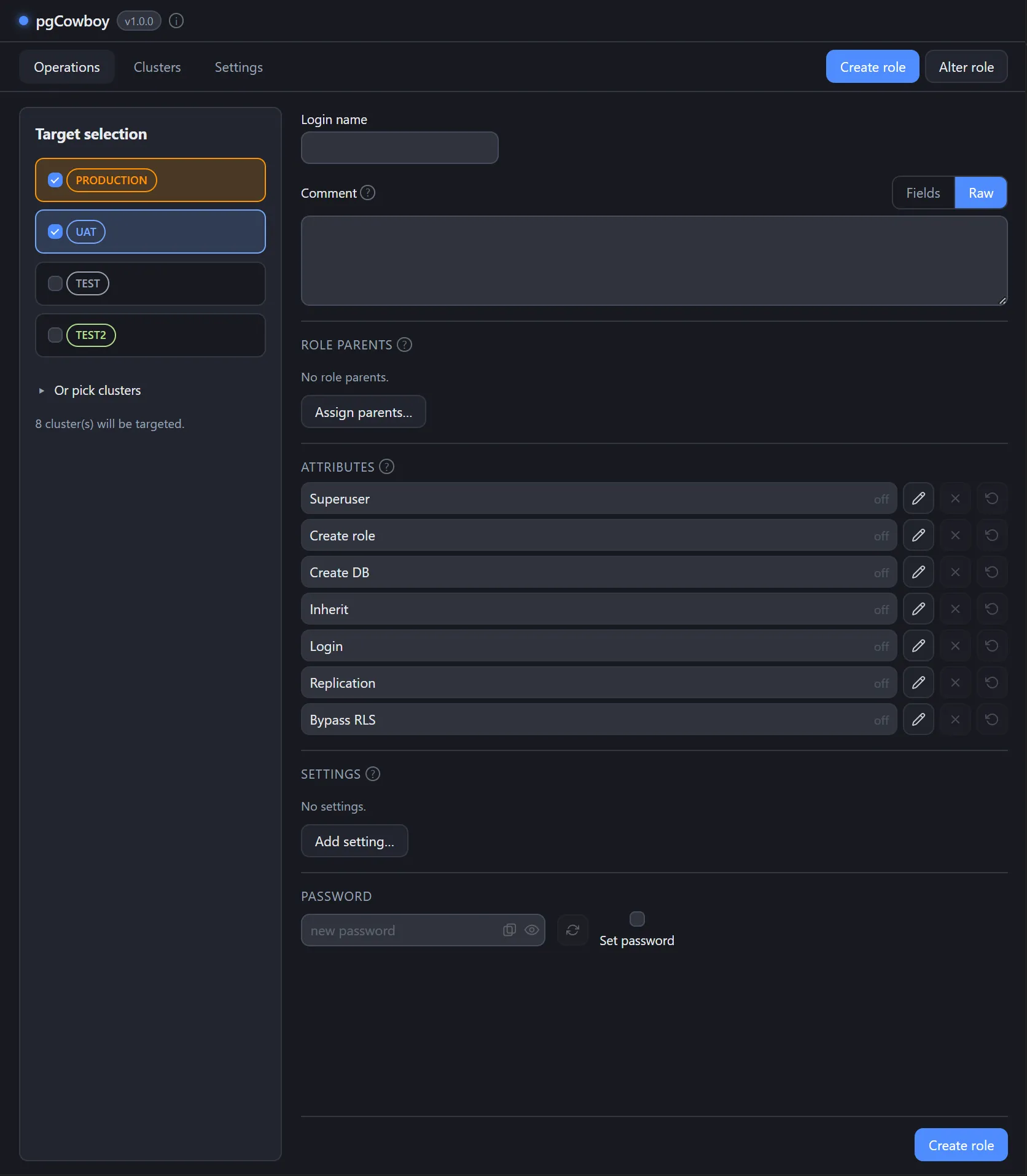
It is the same form as Alter, over an empty baseline: every edit is a grant, an enable, or a set. Fill in what you need:
| Part | Notes |
|---|---|
| Login name | Required. The only field you must fill. |
| Comment | Comment deployed to all clusters, in Fields or Raw mode. |
| Role Parents | The roles it becomes a member of on each cluster/group. |
| Attributes | The role flags, per cluster. |
| Settings | Role-level parameters, per cluster. |
| Password | Tick Set password to set one at creation. |
Adding a target re-synthesises the form, keeping the edits you’ve already made. Removing a target works the same way, though the settings for the removed target are lost.
Execution
Press the Create role button.
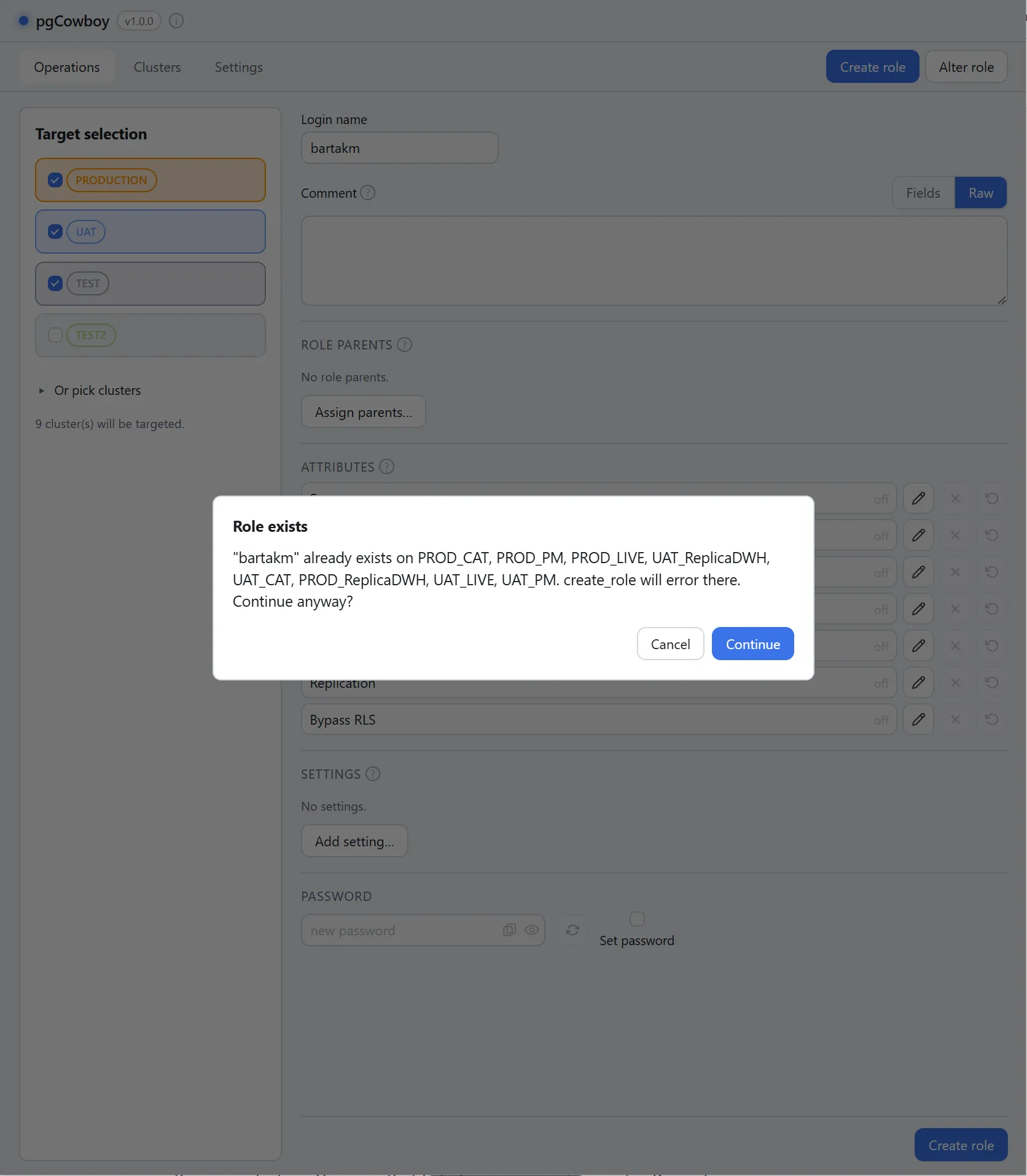
The app validates the login name and warns if the role already exists on any selected cluster.
Then create_role, followed by the parent grants, the password, the attributes, the settings and the comment, is issued against each involved cluster.
Execution failure
The status of every cluster’s execution, including error messages, is available in the command log.
If a cluster fails, then:
- The failing cluster is rolled back — no half-created role.
- Other clusters are unaffected. Each commits its own transaction, so a run can succeed on some clusters and fail on others.
What happens next depends on how much got through:
- Every cluster failed — you stay on the Create form with your input intact. Fix the cause and press Create again.
- At least one cluster succeeded — the form hands off to Alter role with the new role loaded over the same clusters. The ones that failed appear as not present in Present on.
Either way the command log keeps the creation results — the follow-up load is appended to it, not written over it.