
Finding the role to alter
Altering starts with a search, so you always work with an existing role.
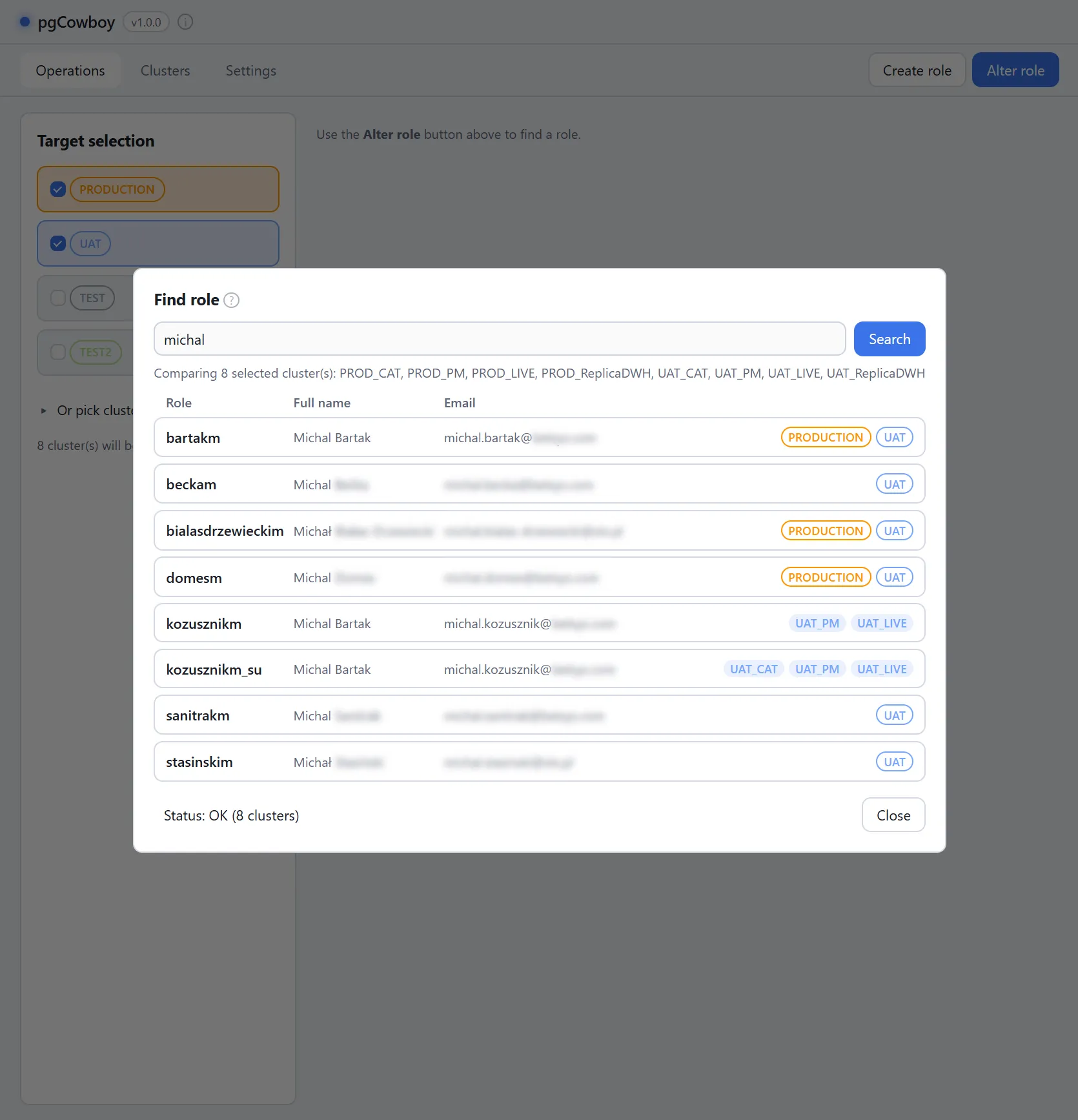
- Set the clusters or groups you want to compare in Target selection.
- Click the Alter role tab. The search dialog opens straight away.
- Type at least two characters.
- Press the Search button.
- All matching roles are offered to select from.
What is searched
- Only the selected clusters, queried in parallel.
- The entered string is matched against role names and their comments (plain text). The SQL can be adjusted to your liking.
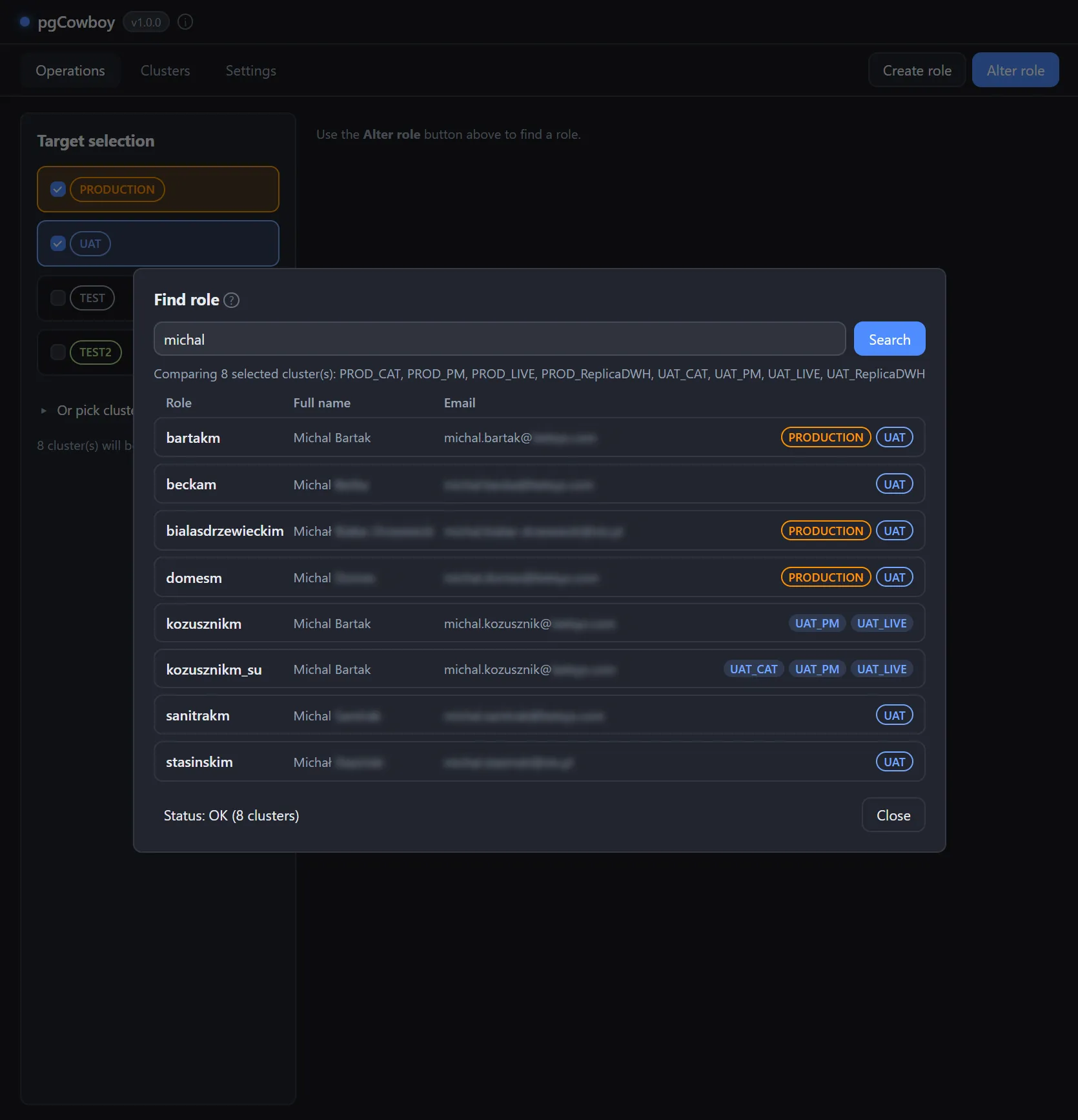
- Results are grouped by login name, with scope labels indicating the role presence.
- An unreachable cluster is reported but doesn’t stop the search.
Operation status
The status of the operation is displayed at the bottom of the popup. It shows the number of successful and failed clusters; the per-cluster details are available after clicking on it. See also Command log.
This status covers the search only. Once you pick a role, loading its details gets its own status in the main window’s bottom bar.
Picking a role
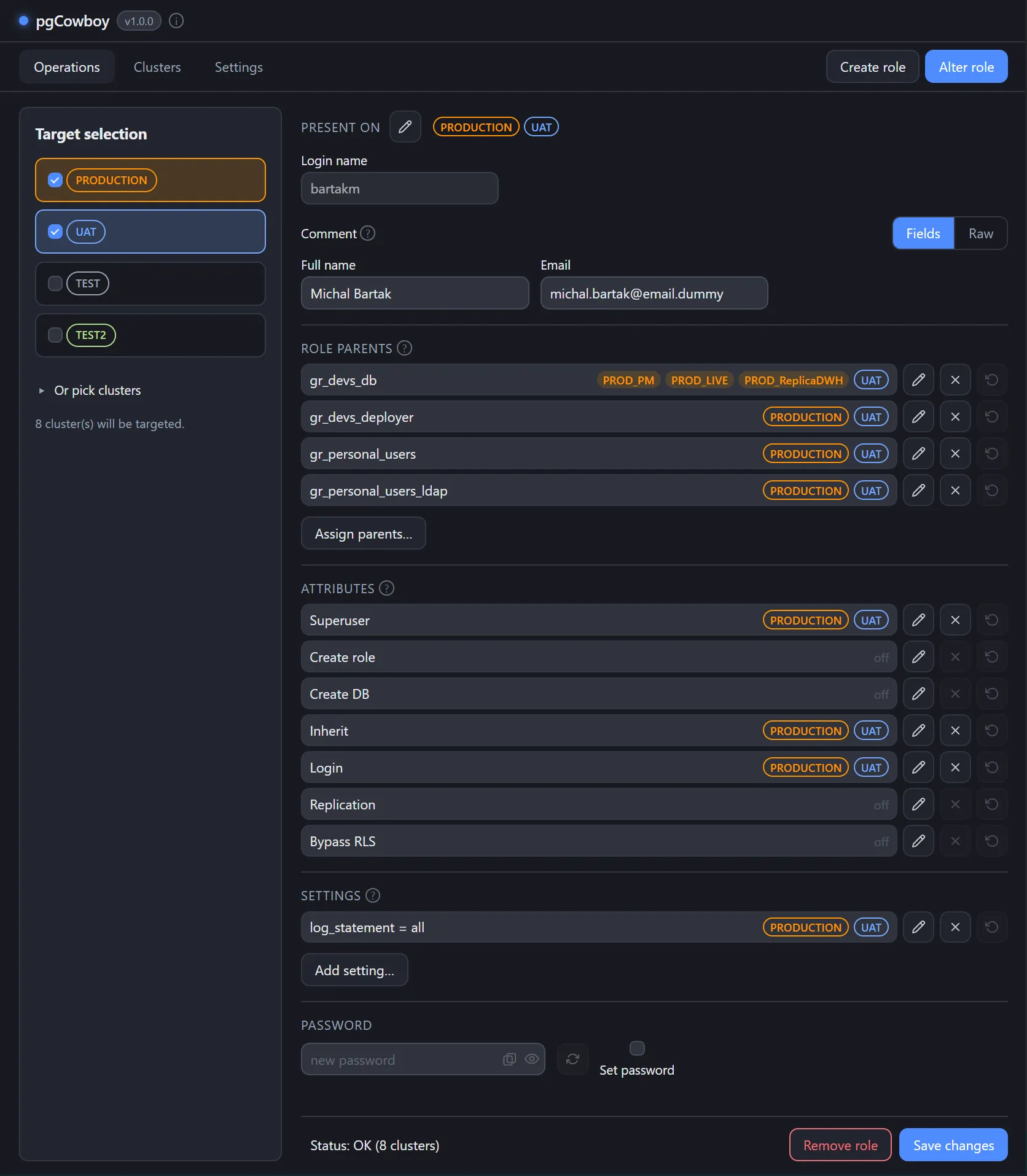
Picking a result aggregates the data from all clusters into one form. The scope labels indicate where each individual setting appears — on a whole cluster group or on single clusters.
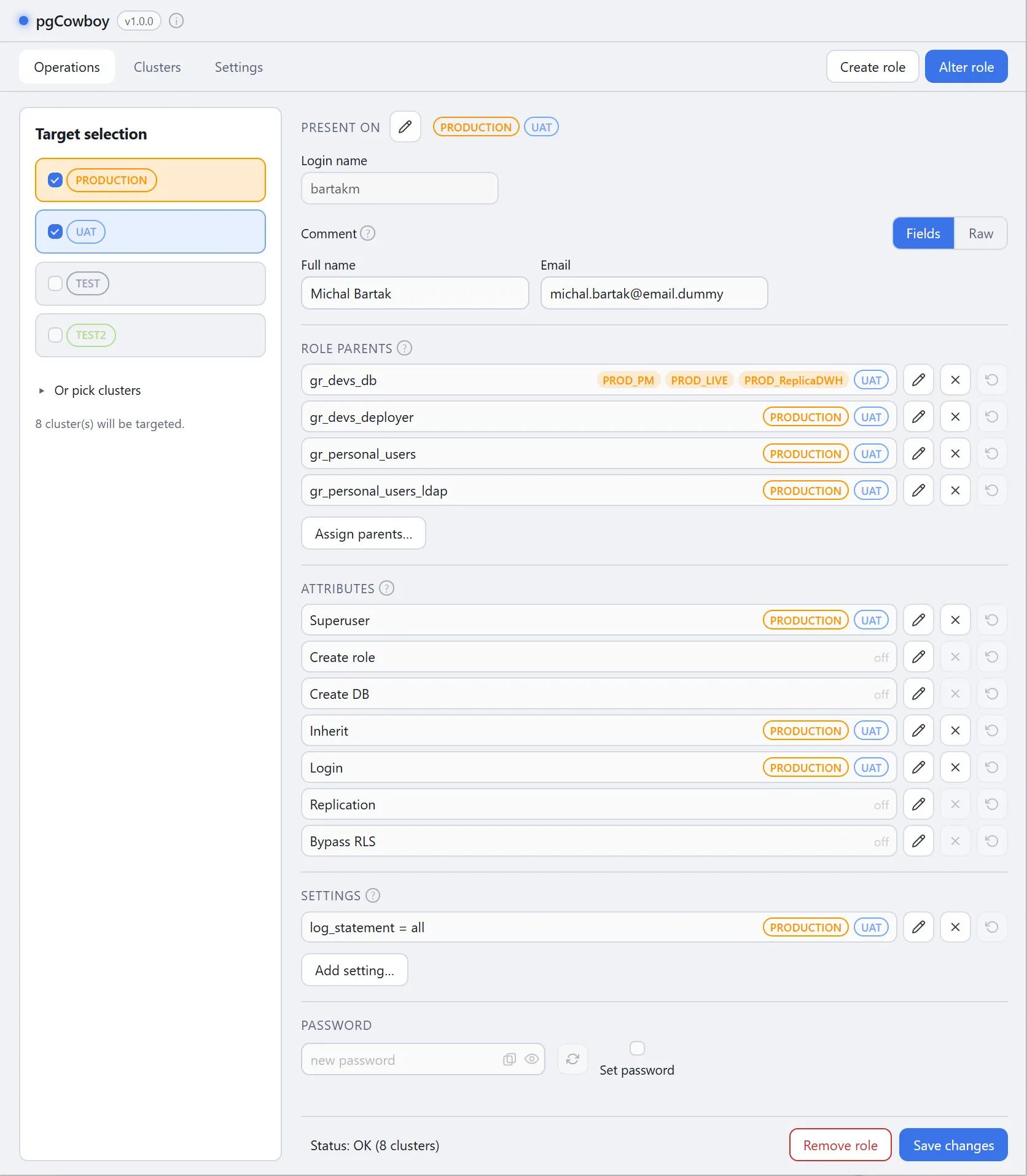
The clusters selected at search time become the role’s working scope.
From here you can edit the comment, role parents, attributes, settings, password, and where the role exists.