
Where a role exists
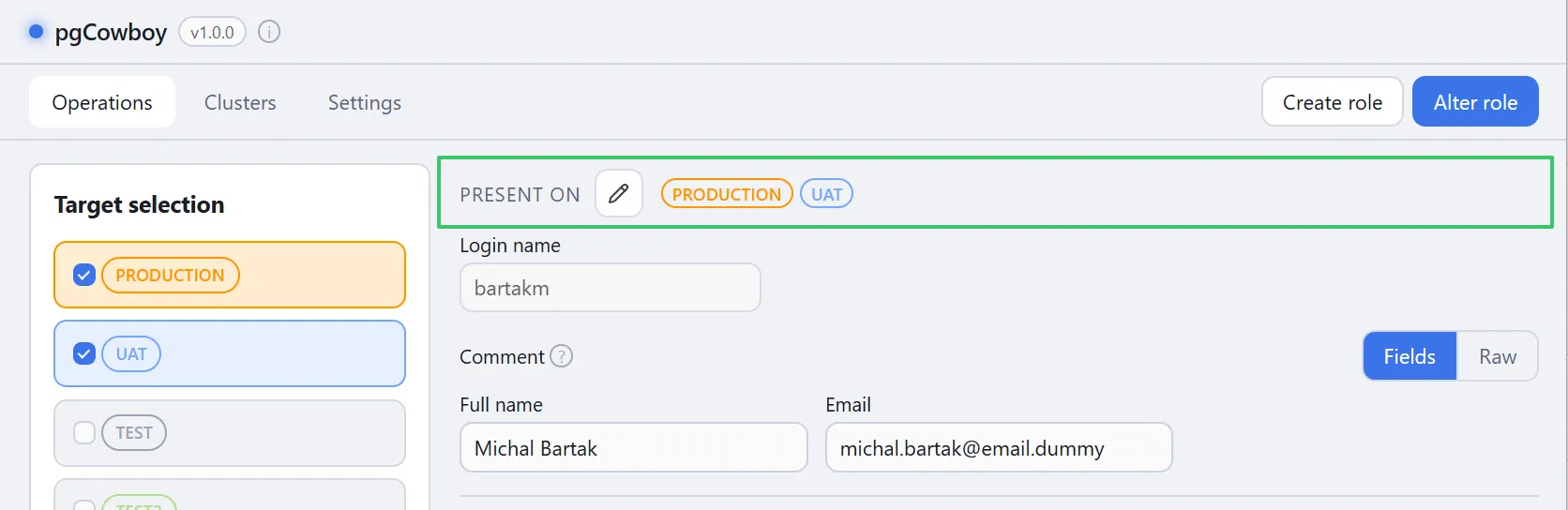
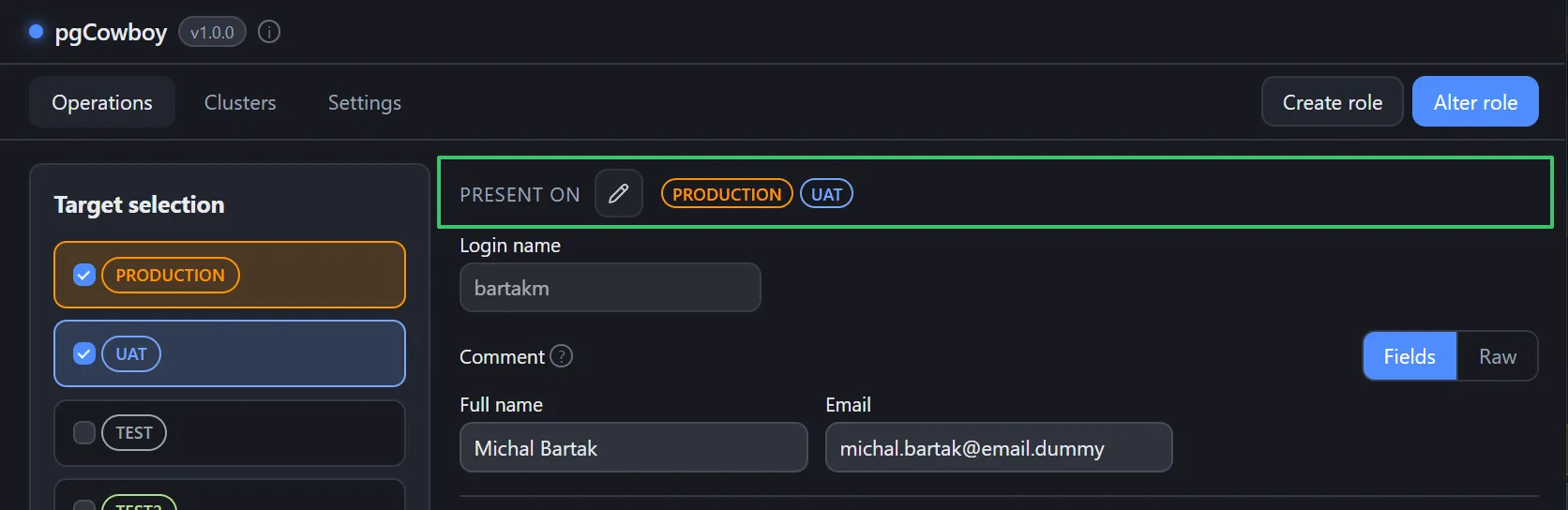
The Present on block, just above the login name, shows which clusters the role exists on, using the shared scope labels.
Editing presence
The edit button opens a picker listing the role’s scope — the clusters that Target selection resolved to when you searched. Tick to create the role on added cluster or untick to drop role from removed cluster.
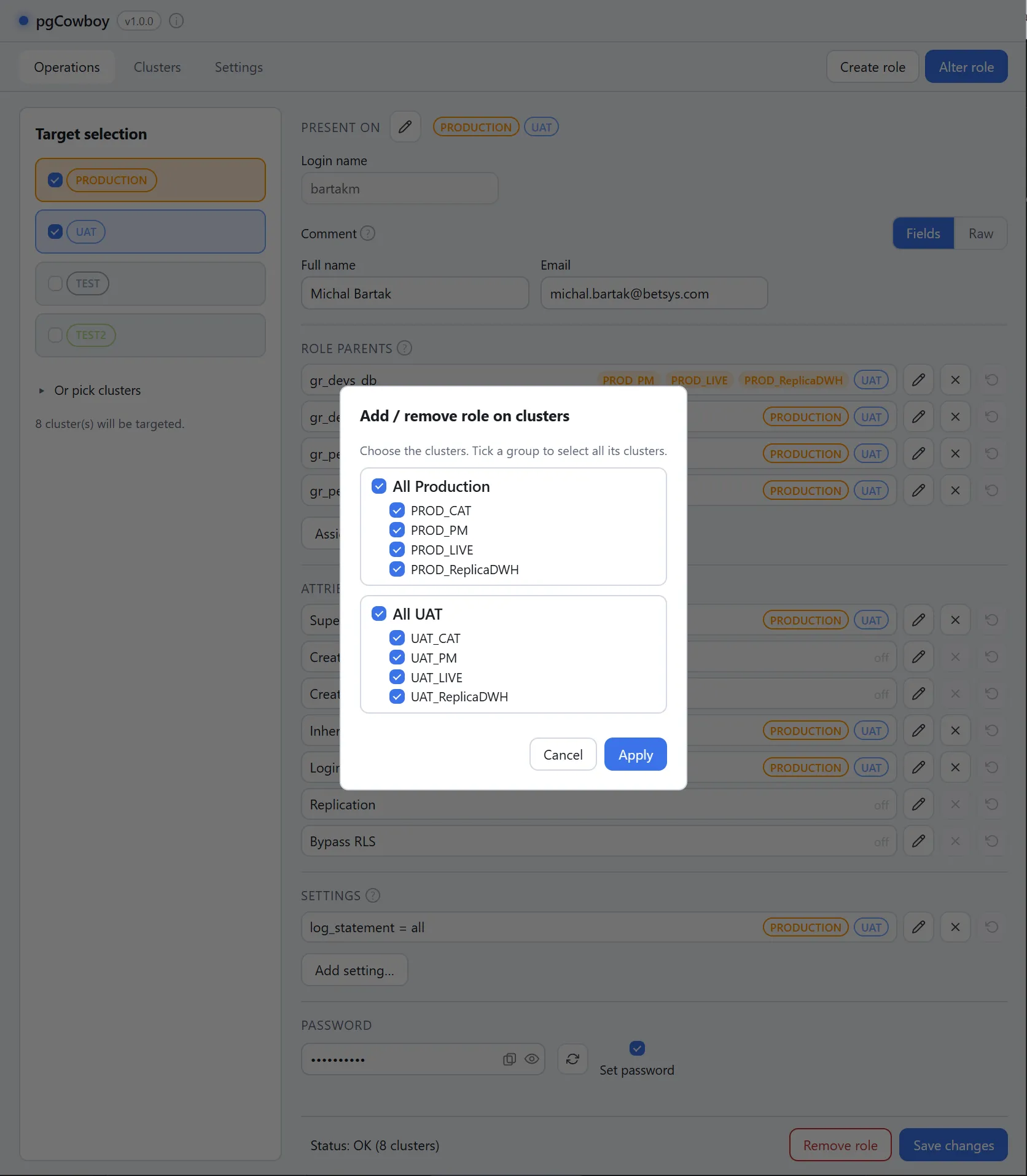
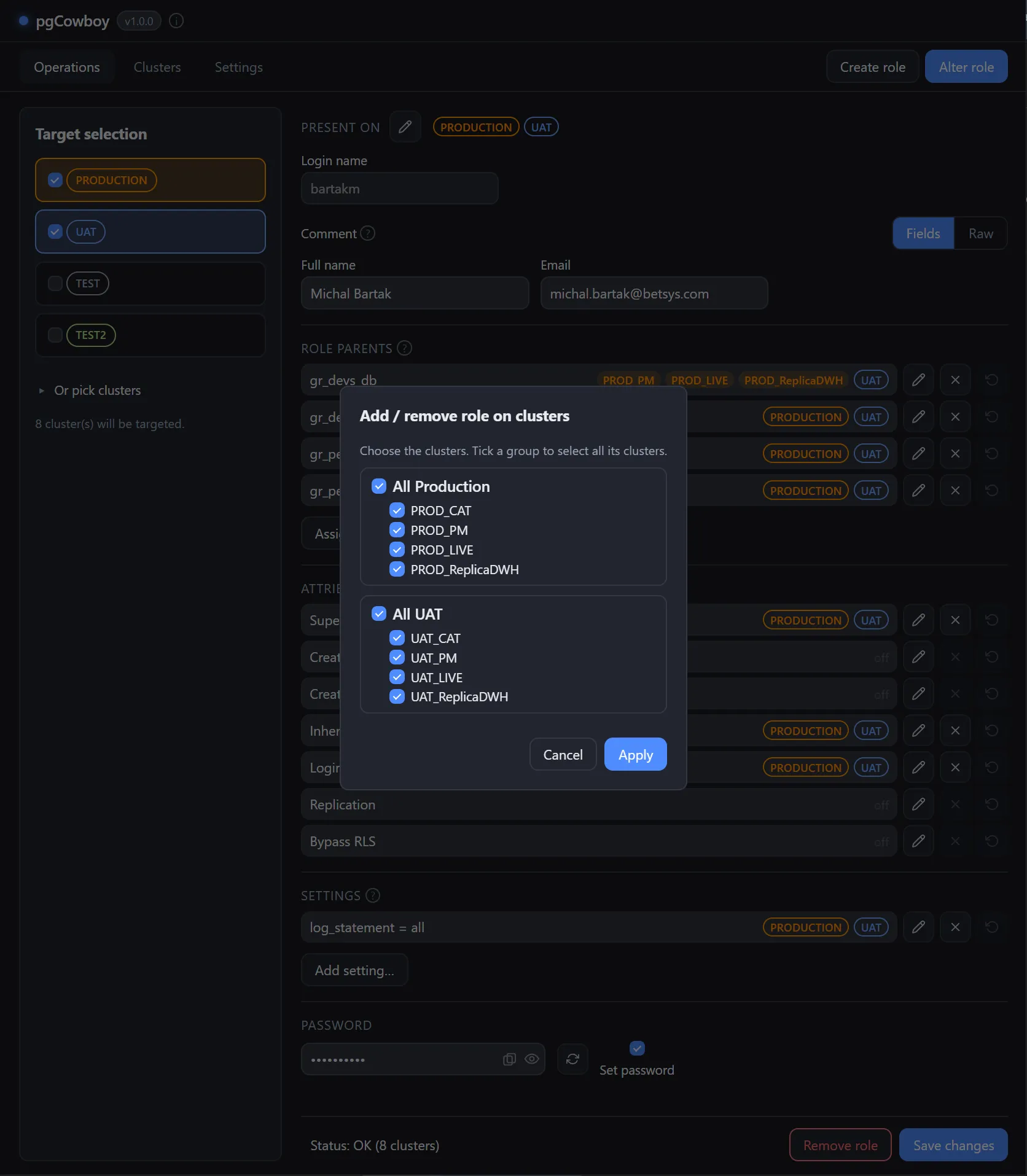
Dropping a cluster records a DROP ROLE for that cluster alone, pre-flighted by the dependency check when you Save.
Adding a cluster brings the whole form to bear on it: role parents, attributes, settings and the comment all target it too. A CREATE ROLE is prepended to that cluster’s transaction on Save. Whether creation is staged automatically is a general setting.
Remove role
The red Remove role button drops the role from every cluster in scope where it exists. It always performsdependency check described below and requests for additional confirmation for groups flagged require confirmation.
Dependency check before a drop
Before a DROP ROLE goes out — whether from Remove role or from a cluster you dropped in the presence picker, the app reads the objects that depend on the role on every targeted cluster and shows them per cluster.
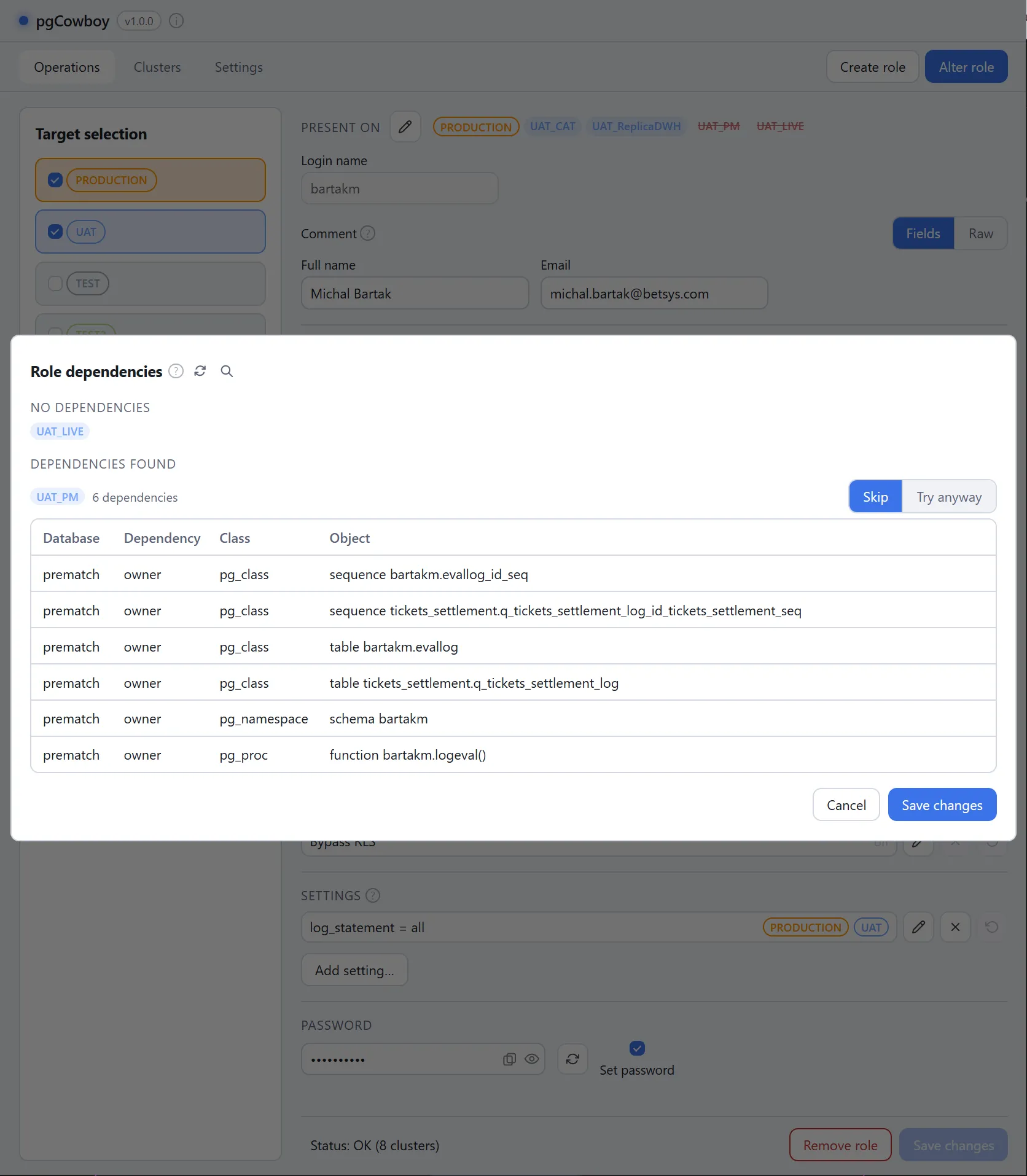
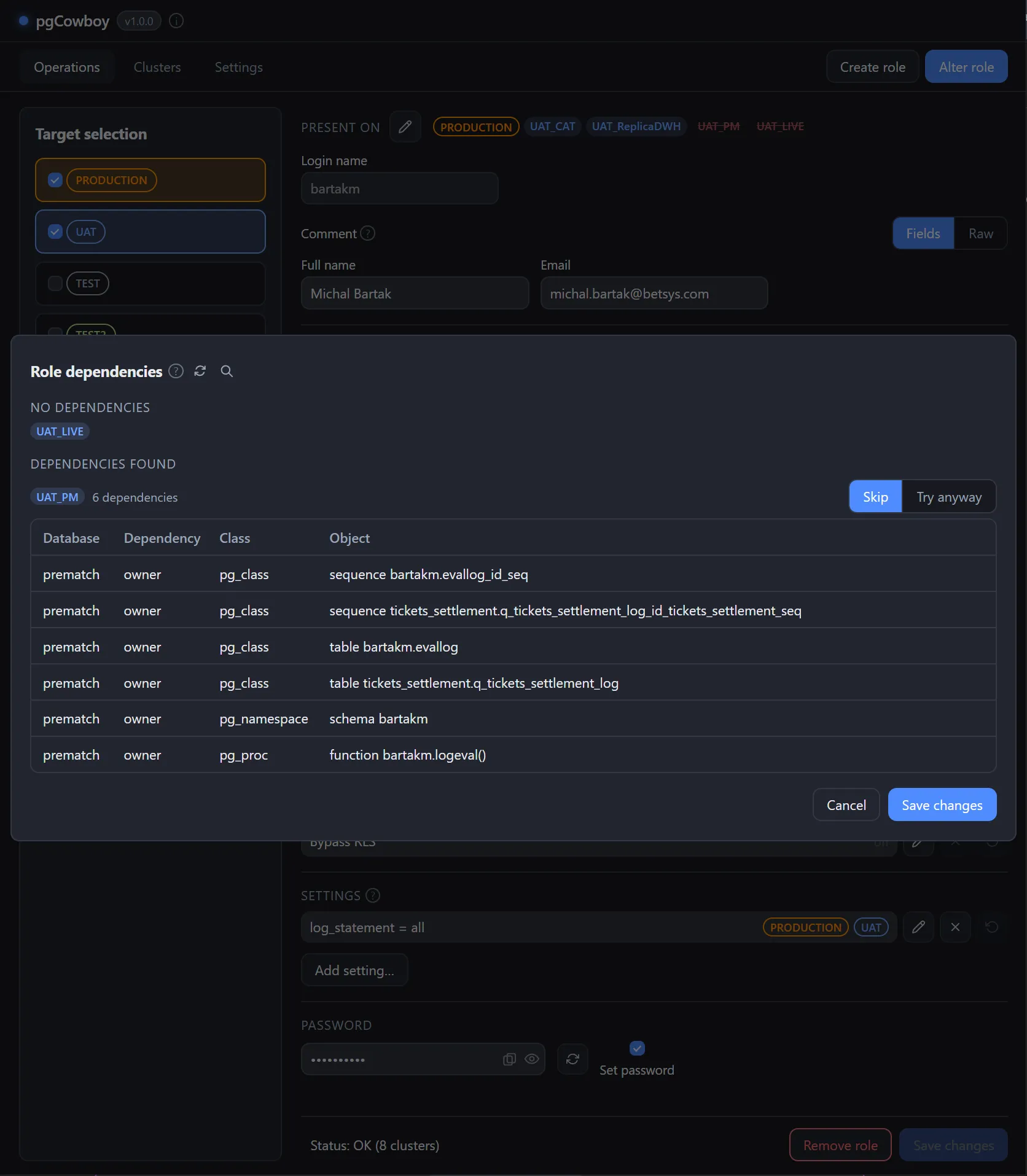
Clusters are grouped into three sections, in this order — and inside each by group, then alias:
- No dependencies — just the list of clusters. They are dropped without further asking.
- Could not be checked — the cluster and error reason).
- Dependencies found — per cluster, the objects that depend on the role.
Everything in the last two sections defaults to Skip and is left out of the run entirely. Switch a cluster to Try anyway to attempt the drop regardless: the outcome is shows in the command log like in any other run.
The query sent to each cluster uses configurable Role dependencies template. It can be looked with use of the small magnifier next to the popup’s title.