
Usage overview
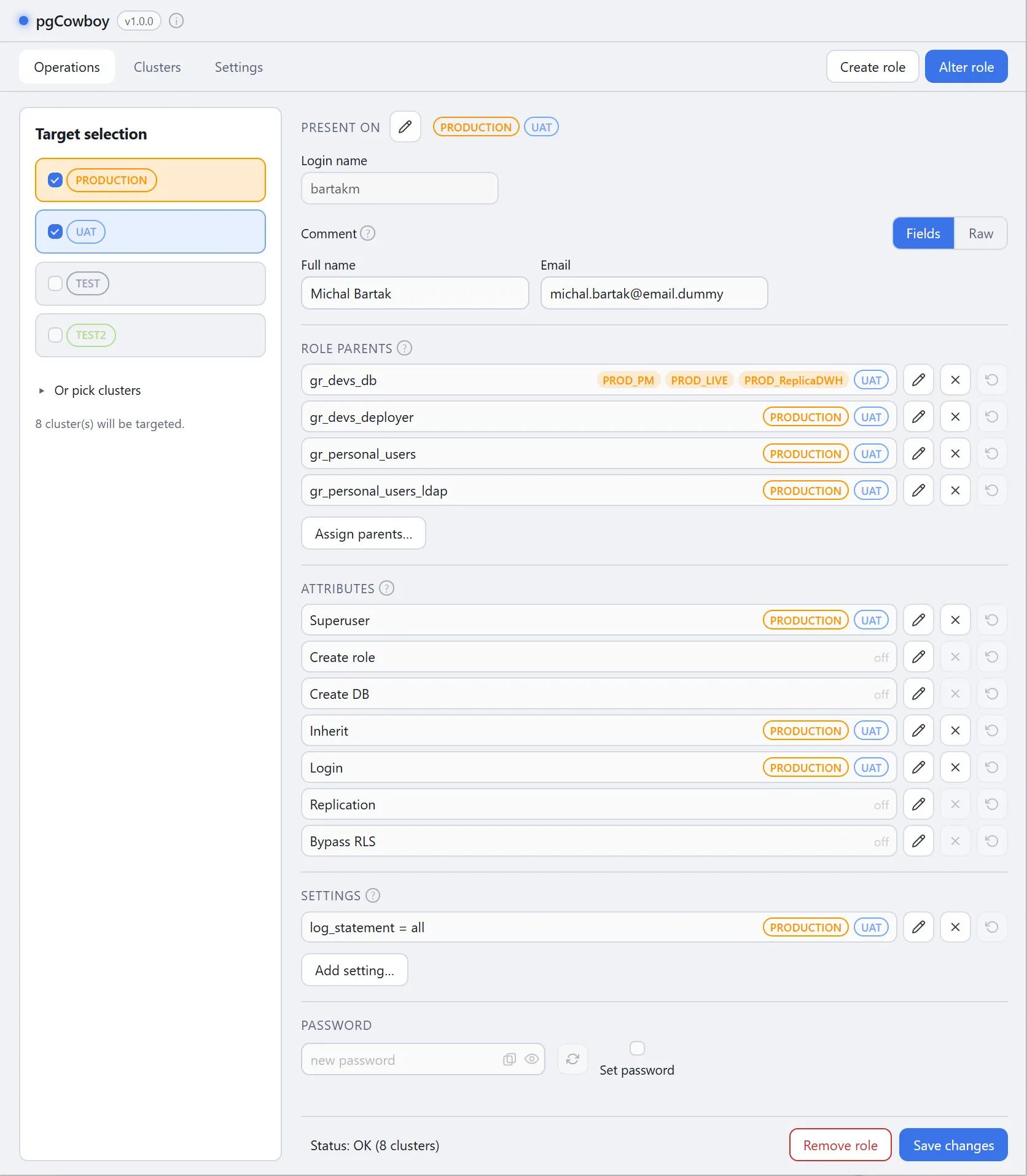
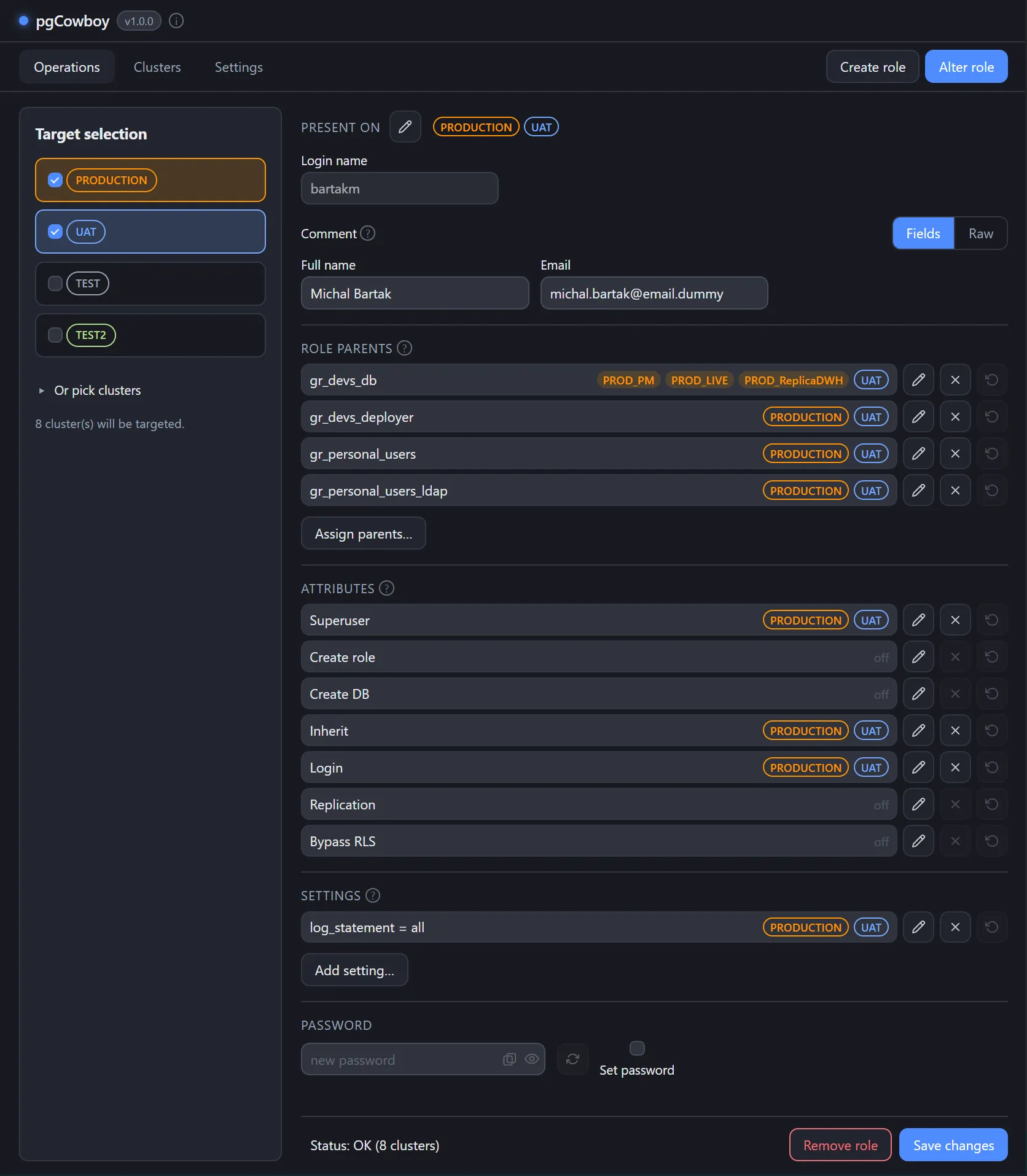
The Operations tab is where you create and alter roles. Its left sidebar picks the targets; the right side is one form for the role.
Everything goes to the selected targets
There is no per-cluster form. Whatever you do on this tab — searching, creating, altering, removing — applies to exactly the clusters selected in the sidebar.
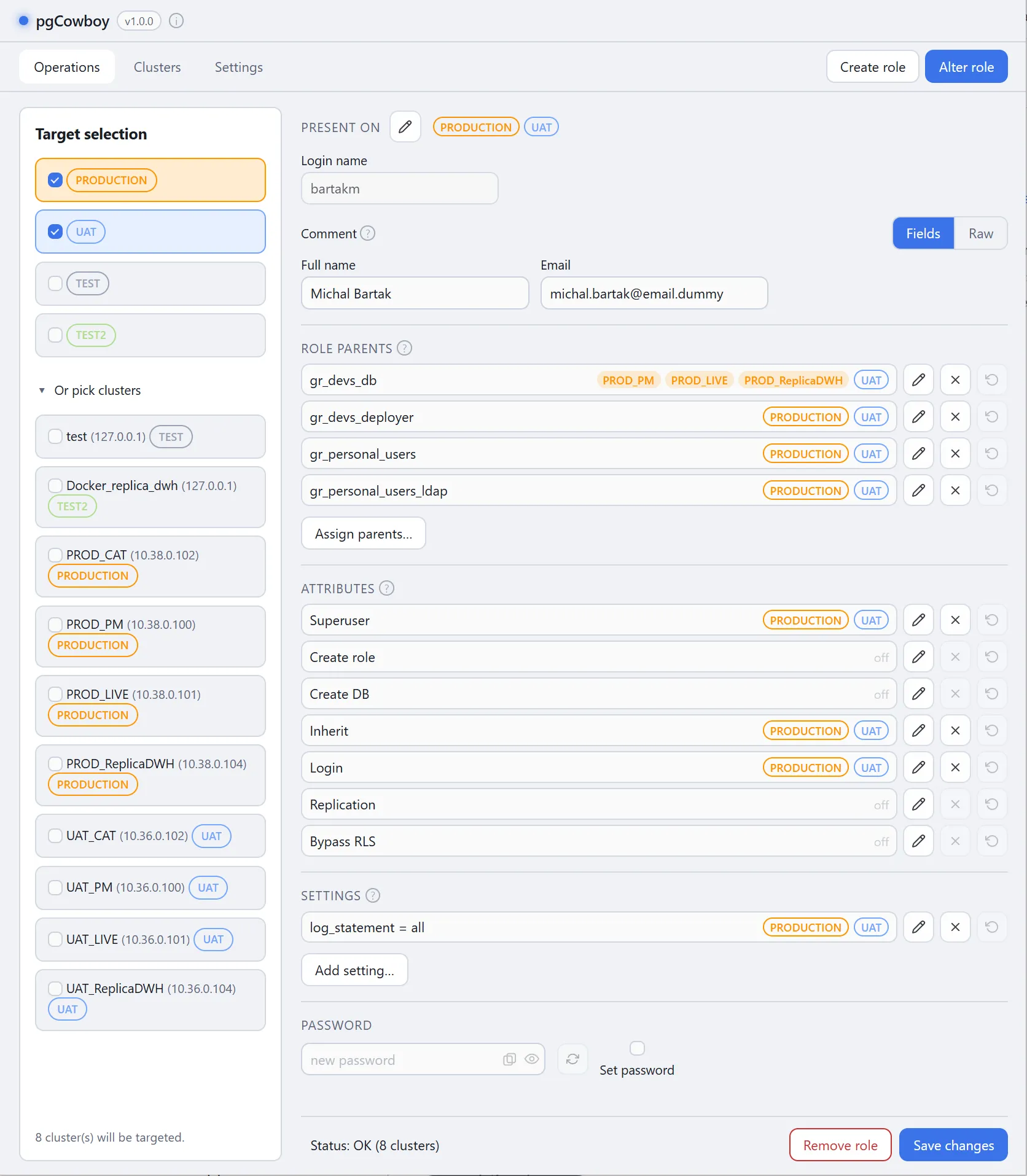
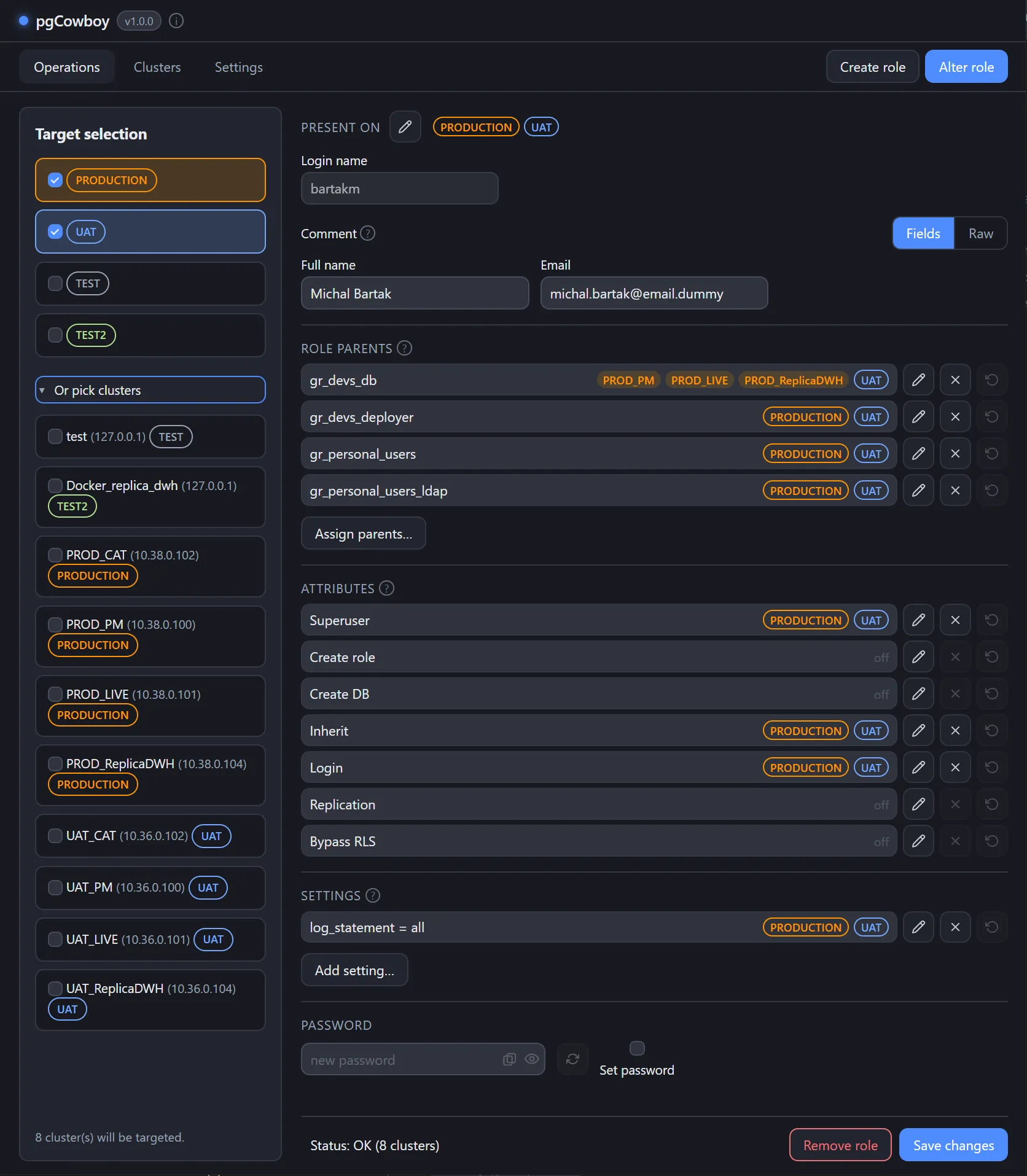
- Tick whole groups, or expand Or pick clusters to choose individual clusters.
- The selection is remembered between sessions and application restarts.
The selection in force when you search becomes the role’s scope. Everything the form then shows and does is about those clusters, and nothing else.
Scope labels
Wherever clusters are listed — Present on, role-parent rows, attributes, settings, comments, search results — the app uses the same labels, coloured by group:
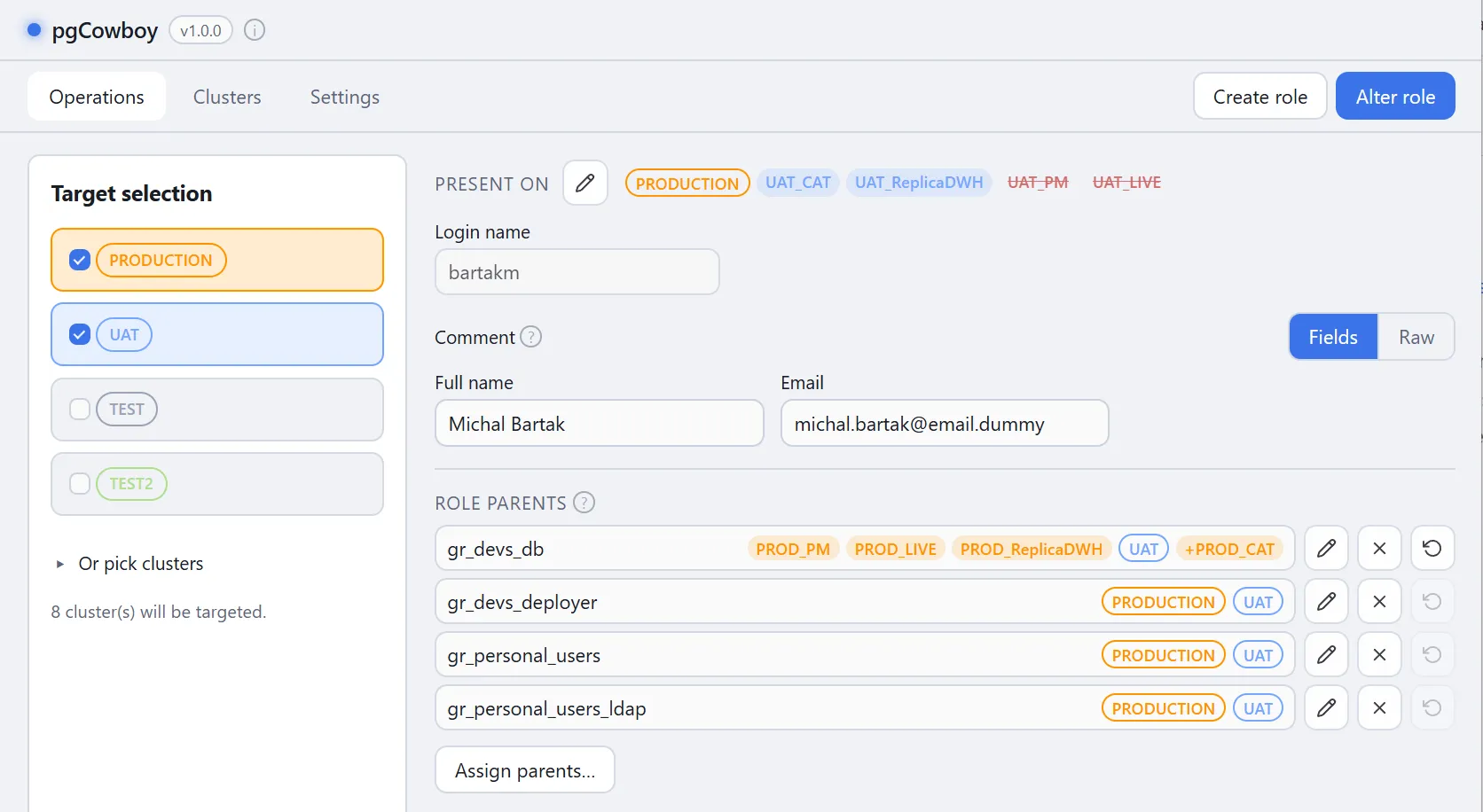
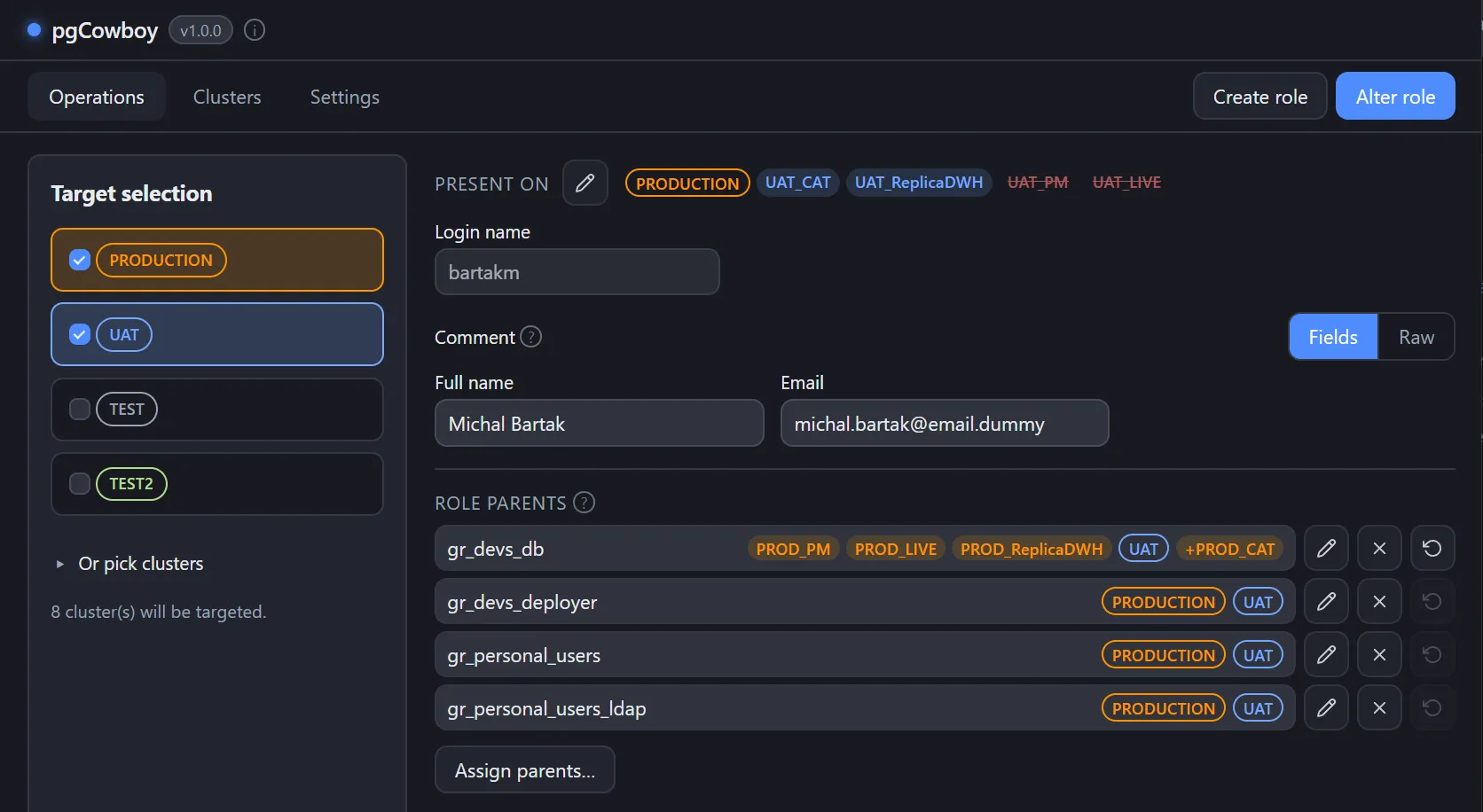
- Outlined label (bordered, transparent) — carries the cluster group name. It is the visual cue that every cluster of that group matches — for example, a parent role is assigned on all clusters of the group.
- Filled labels (no border) — carry a cluster name, used when the setting varies across the clusters of a group. The colour still follows the group colour.
Pending changes
Labels also show edits you haven’t saved yet:
- Pending addition — a leading
+on the label. The label follows its group colour. - Pending removal — the label turns red and struck through, and drops its group colour.
Both are staged only. Nothing reaches a database until you Save.
How changes are applied
- You edit the form. Changes are being staged within the app
- Save changes (or Create role) builds an ordered list of operations per cluster.
- Each cluster’s list runs as one transaction — commit on success, roll back on the first error.
- Progress and results appear in the command log.
Runs that touch a group flagged require confirmation stop at a dialog first.
If a role drop or creation are involved, the app performs a pre-flight check showing the result.
Where to go next
- Finding a role — the search that starts every alter.
- Creating a role — the other entry point.